Why logged-in WordPress users experience slower performance
Most guides on how to speed up WordPress focus on anonymous visitors.
Your website might score A+ in GTmetrix and 90+ in PageSpeed Insights, but your Core Web Vitals metrics can still suffer from high LCP and TTFB.
Logged-in users bypass cache rules by default, so each page must be generated from scratch, creating high TTFB.

This is particularly a problem on WooCommerce and membership sites, where your most valuable users spend the majority of their time logged in, experiencing slower page loads while browsing products or accessing premium content.
When your paying customers experience slower performance than anonymous visitors, it creates a frustrating user experience that can hurt retention and sales.
Why traditional WordPress speed optimization fails for logged-in users
Speeding up non-cached pages is significantly more challenging than you might expect.
Because unlike anonymous visitors who see pre-generated cached HTML, logged-in users require dynamic page generation with personalized content, real-time database queries, and user-specific data. This makes traditional frontend caching solutions ineffective.
When a customer logs into your WooCommerce store, WordPress must:
- Check their user permissions and role
- Display personalized product recommendations
- Show their cart contents and wishlist items
- Pull their order history from the database
- Generate user-specific pricing or member discounts
- Render their account dashboard with real-time data
Popular caching plugins like WP Rocket, W3 Total Cache, and WP Super Cache automatically exclude logged-in users from their caching mechanisms.
This isn’t a limitation. It’s by design.
Serving cached content to logged-in users would show them someone else’s personal information, cart contents, or account details.
The performance gap can increase even more on high-traffic sites where the server is already working hard to serve cached content to anonymous users, leaving fewer resources available for the computationally expensive task of generating personalized pages for logged-in users.
How to fix slow logged-in user sessions
Now that we understand why standard WordPress optimization fails for logged-in users, let’s explore targeted techniques to speed up non-cached, personalized pages by improving page generation times:
- Enable logged-in user caching (Only available in select plugins)
- Optimize database performance and query efficiency
- Upgrade to PHP 8+ and enable PHP OPcache
- Use code profiling tools to identify and remove plugin bloat
- Implement Edge-Side Includes (ESI) for partial page caching
- Implement Speculative Loading API (prerender/prefetch)
- Replace WordPress cron with server-level cron jobs
- Apply WordPress performance basics and choose better hosting
1. Enable logged-in user caching (Only available in select plugins)
While most caching plugins exclude logged-in users by default to prevent privacy issues, several premium caching solutions offer advanced logged-in user caching features.
These plugins use sophisticated techniques to safely cache personalized content without compromising user data or showing one user’s information to another.
Recommended plugins with logged-in user caching:
- WP Rocket – Offers logged-in user caching with smart cache segmentation
- FlyingPress – Features advanced caching algorithms for authenticated users
- LiteSpeed Cache – Provides ESI (Edge Side Includes) for partial page caching of logged-in users
- Seraphinite Accelerator – While currently in beta mode as of August 2025, offers users cache

Important implementation notes:
This feature requires careful configuration to avoid caching sensitive user data.
Some managed WordPress hosts may need to enable this functionality through their support team.
Always test thoroughly in a staging environment before implementing on live sites.
Not all plugins handle logged-in user caching the same way or it’s very complicated to implement. Choose plugins with proven track records.
Limitations to consider:
User-specific content (cart contents, account dashboards) may still need to load dynamically.
E-commerce checkout pages should typically remain uncached for security.
Member-only content requires special handling to prevent unauthorized access.
2. Optimize database performance and query efficiency
A slow database can be a major bottleneck for WordPress page generation.
Why? Because WordPress executes dozens of database queries during each page generation process.
A typical logged-in user session might execute 50-200+ database queries per page load, depending on your theme, active plugins, and the complexity of personalized content being displayed.
Common database performance issues:
- Slow or unoptimized queries taking 500ms+ to execute
- Missing database indexes on frequently queried tables
- Bloated wp_options table with excessive autoloaded data
- Unused post revisions, spam comments, and orphaned data
- Inefficient plugin queries that multiply with each logged-in user
Using Query Monitor to identify bottlenecks:
The Query Monitor plugin is essential for diagnosing database performance issues. It provides detailed insights into:
- Which queries are slowest and consuming the most time
- Duplicate queries that could be optimized or cached
- Plugin-specific database overhead
- Total query count and execution time per page
- Memory usage and PHP errors affecting performance

Install Query Monitor and navigate your site as a logged-in user to identify the specific queries slowing down your page generation.
Look for queries taking over 100ms or pages executing more than 100 queries – these are prime optimization targets.
Important: Deactivate the Query Monitor plugin after debugging, as leaving it enabled can interfere with logged-in user caching and negate your performance optimizations.
Quick database optimization wins:
- Clean up wp_options autoload data regularly (Advanced Database Cleaner plugin is highly recommended)
- Remove unnecessary post revisions and spam comments (Limit post revisions to a certain value using a plugin or code snippet)
- Convert database tables to InnoDB storage engine (InnoDB is much more efficient than MyISAM for concurrent user sessions)
- Add database indexes to frequently queried custom fields (Index WP MySQL for speed plugin does this amazingly well)
- Optimize or replace plugins causing excessive database calls
- Consider implementing object caching to reduce repeat queries (Contact your hosting provider for Redis or Memcached)
3. Upgrade to PHP 8+ and enable PHP OPcache
PHP version and OPcache configuration have a massive impact on page generation times for logged-in users.
Since these users can’t benefit from page caching, every performance gain at the PHP level directly translates to faster page loads.
Why PHP 8.2+ Is Significantly Faster
PHP 8.2 and newer versions include substantial performance improvements that benefit WordPress sites with heavy database operations and complex plugin interactions:
- Just-In-Time (JIT) compilation – Compiles frequently executed code to machine code for dramatic speed improvements
- Improved memory management – More efficient garbage collection reduces memory overhead
- Enhanced opcode optimization – Better compilation of PHP code into bytecode
- Faster string operations – Optimized string handling benefits WordPress’s text-heavy operations
- Reduced function call overhead – Lower latency for WordPress hooks and plugin interactions
For WordPress sites, PHP 8.2+ can deliver 15-30% faster execution times compared to PHP 7.4, with even greater improvements for complex logged-in user sessions that involve multiple plugin interactions and database queries.
PHP OPcache: Essential for dynamic page generation
OPcache stores precompiled PHP bytecode in memory, eliminating the need to parse and compile PHP files on every request.
This is crucial for logged-in users since their pages must be generated from scratch each time.
Without OPcache, WordPress must:
- Read PHP files from disk
- Parse the PHP syntax
- Compile to bytecode
- Execute the code
With OPcache enabled, steps 1-3 are skipped entirely, reducing page generation time by 200-500ms or more.
Recommended OPcache configuration
Add these settings to your php.ini file or contact your hosting provider to implement them:
opcache.huge_code_pages=1
opcache.interned_strings_buffer=64
opcache.max_accelerated_files=15000
opcache.max_wasted_percentage=5
opcache.memory_consumption=1024
opcache.revalidate_path=0
opcache.validate_timestamps=1
opcache.revalidate_freq=10
opcache.enable_cli=1
opcache.use_cwd=1
Configuration breakdown:
memory_consumption=1024– Allocates 1GB RAM for OPcache (adjust based on your server’s available memory)max_accelerated_files=15000– Handles large WordPress installations with many plugins and themesinterned_strings_buffer=64– Optimizes memory usage for string operationsrevalidate_freq=10– Checks for file changes every 10 seconds (balance between performance and development flexibility)
Verification and monitoring
After implementing these changes, you can verify OPcache is working properly using plugins like OPcache Manager or by checking your server’s PHP info. Look for OPcache hit rates above 95% for optimal performance.
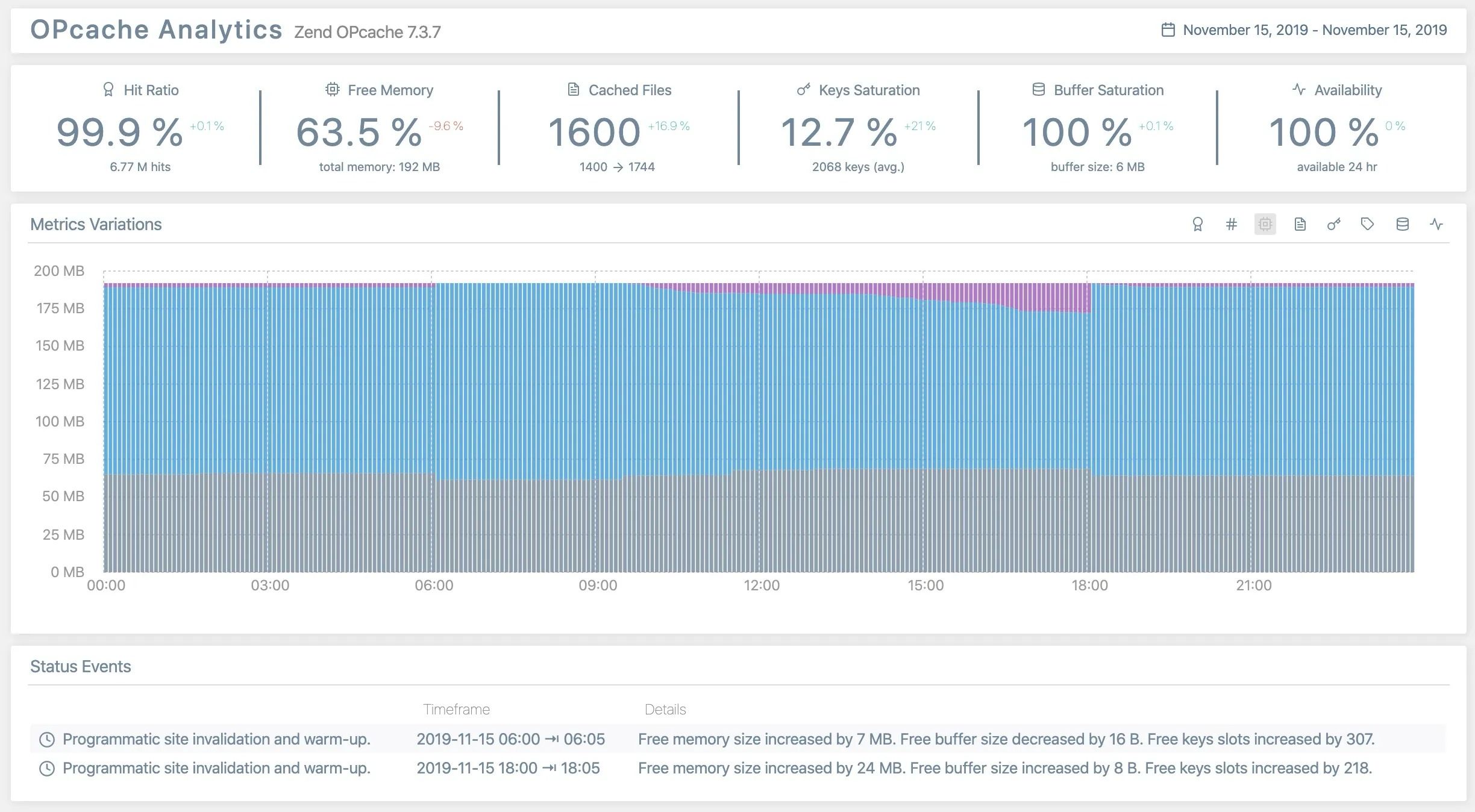
The combination of PHP 8.2+ and properly configured OPcache can reduce page generation times by 30-50% for logged-in users, making it one of the most impactful optimizations you can implement.
4. Use code profiling tools to identify and remove plugin bloat
Plugin bloat is one of the biggest culprits behind slow logged-in user sessions, as poorly coded or unnecessary plugins add database queries, memory overhead, and processing time to every page request.
Rather than guessing which plugins are causing performance issues, use profiling tools to get concrete data on plugin impact.
The Code Profiler plugin is an excellent WordPress-specific tool that provides detailed performance insights by measuring execution time, memory usage, and database queries for each active plugin.
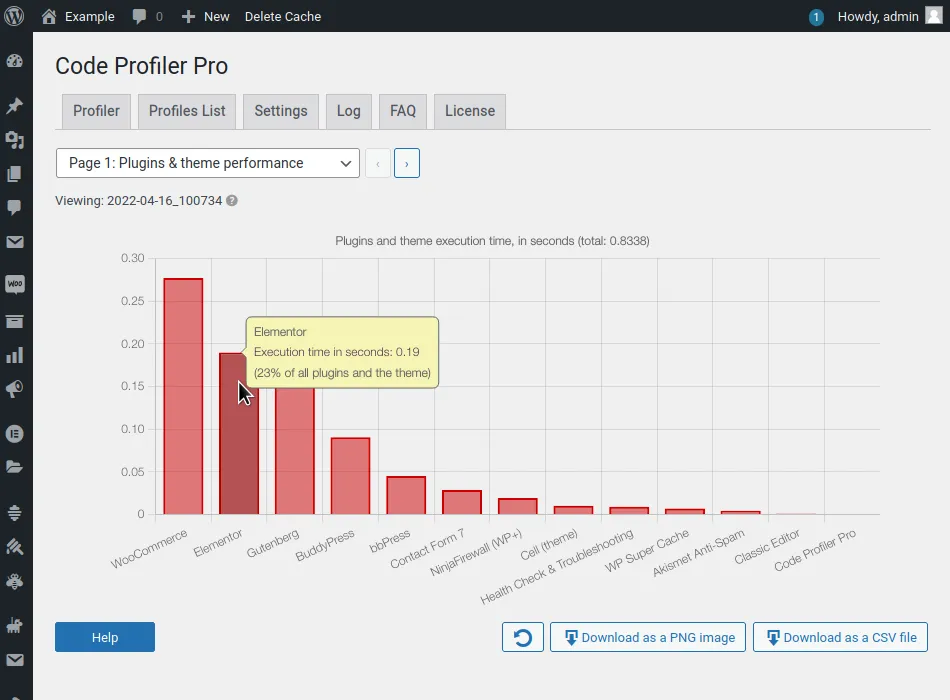
It shows you exactly which plugins are consuming the most resources during page generation, allowing you to make data-driven decisions about what to keep, optimize, or remove.
Once you identify the worst-performing plugins, you have several options: replace them with faster alternatives, configure them more efficiently, or eliminate them entirely if they’re not essential.
Focus on plugins that add more than 100ms to page generation time or execute excessive database queries. Remember, even a plugin that seems “lightweight” can significantly impact logged-in user performance if it runs resource-intensive processes on every page load.
Consider replacing feature-heavy plugins with simple code snippets for basic functionality. A few lines of custom code often outperforms bloated plugins with unnecessary features.
Regular plugin audits using profiling tools should be part of your maintenance routine, especially after adding new plugins or updating existing ones that might introduce performance regressions.
5. Implement Edge-Side Includes (ESI) for partial page caching
Edge-Side Includes (ESI) allows you to cache static portions of your pages while keeping personalized content dynamic. This essentially gives you the best of both worlds for logged-in users.
Instead of regenerating entire pages, ESI caches common elements like headers, navigation, sidebars, and product listings, while dynamically loading user-specific sections like cart contents, account information, or personalized recommendations.
This technique is particularly effective for WooCommerce and membership sites where much of the page structure remains the same across users, but certain sections need personalization.
ESI can reduce page generation time by 40-60% since your server only needs to process the dynamic portions rather than rebuilding the entire page from scratch.
ESI requires server-level support through Varnish Cache, certain CDN providers, or LiteSpeed web servers.
The LiteSpeed Cache plugin provides excellent ESI functionality for WordPress sites hosted on LiteSpeed or OpenLiteSpeed servers, making implementation much simpler than manual server configuration.
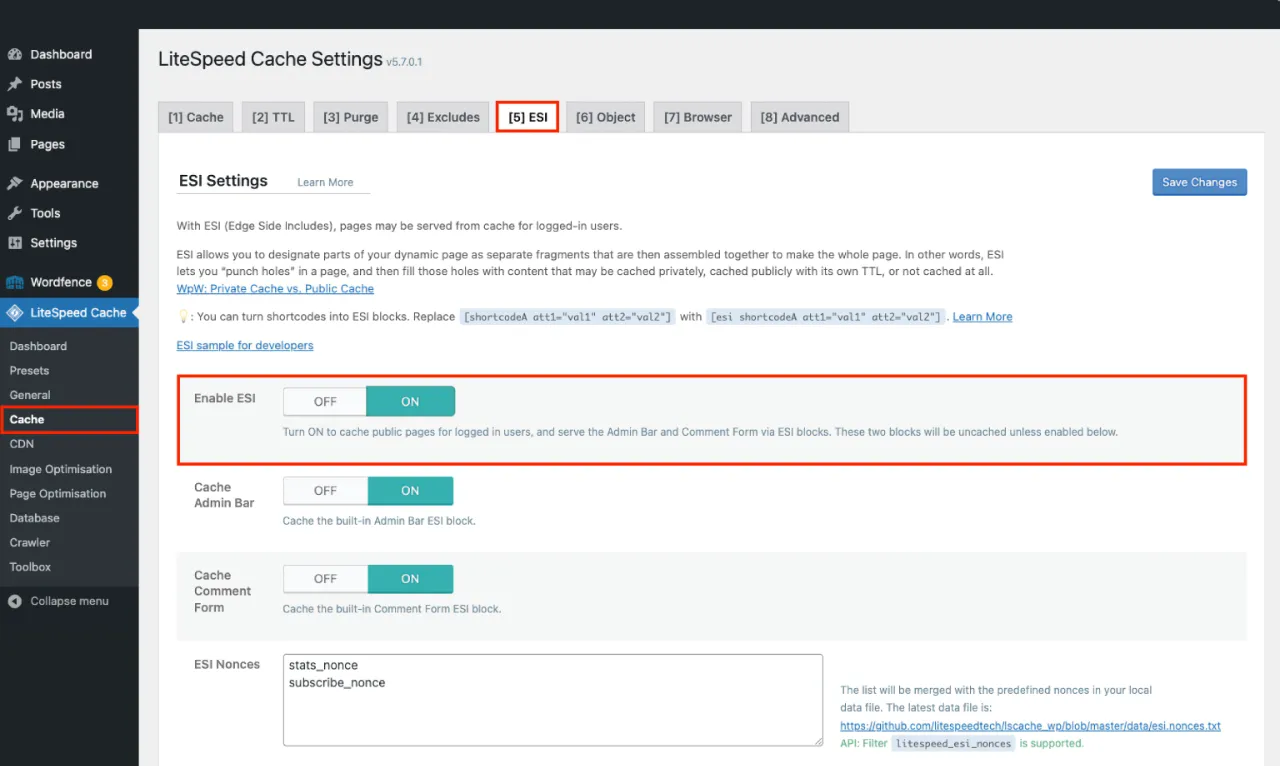
Popular managed WordPress hosts like Kinsta and WP Engine also offer ESI functionality, though you may need to contact support to enable it.
While ESI requires more technical setup than other optimizations, it’s one of the most effective ways to dramatically improve logged-in user performance without compromising personalization.
6. Implement Speculative Loading API (prerender/prefetch)
Speculative loading techniques allow browsers to preload pages and resources that logged-in users are likely to visit next, dramatically reducing perceived load times.
The Speculation Rules API and traditional prefetch/prerender directives can predict user behavior and load content in the background while users browse your current page.
For WooCommerce sites, this might mean preloading the checkout page when users add items to their cart, or prefetching product pages for items in their wishlist. Membership sites can preload account dashboards or frequently accessed member content based on user navigation patterns.
I highly recommend using Performance Lab plugin for configuring Speculative Loading. The Performance Lab plugin is a collection of features focused on enhancing performance of your site, most of which should eventually be merged into WordPress core.

While speculative loading doesn’t reduce actual page generation time, it creates a much faster user experience by eliminating wait times for pages that have already been loaded in the background.
7. Replace WordPress cron with server-level cron jobs
WordPress cron (wp-cron) runs scheduled tasks like backups, plugin updates, and maintenance during user visits, which adds processing overhead to page generation.
This is particularly problematic for logged-in users who already experience slower load times.
By default, wp-cron triggers with every page request, meaning your most valuable customers may experience delays while WordPress processes scheduled tasks in the background.
Server-level cron jobs eliminate this performance hit by running WordPress maintenance tasks independently of user visits. Instead of wp-cron executing during page loads, a proper server cron job triggers WordPress scheduled tasks at set intervals without impacting user experience.
To implement this optimization, disable wp-cron by adding define('DISABLE_WP_CRON', true); to your wp-config.php file, then set up a server cron job to call wp-cron.php every 5-15 minutes. Most hosting providers allow cron job configuration through cPanel, or you can contact support for assistance.

This simple change removes unpredictable processing delays from logged-in user sessions, ensuring that scheduled tasks never interfere with page generation speed.
8. Apply WordPress performance basics and choose better hosting
WordPress performance basics is simply using lean, bare-bones themes without excessive features, compressing images, keeping plugins minimal, and maintaining a clean database.
Each of these reduces the processing overhead and resource consumption that logged-in users experience during dynamic page generation.
Equally important is upgrading from budget shared hosting to performance-focused hosting with SSD/NVMe storage, adequate RAM allocation, and optimized server configurations for WordPress.
PHP OPcache, object caching (Redis/Memcached), and better resource allocation that can improve logged-in user performance by 50% or more compared to cheap shared hosting.
Your hosting environment is the foundation that determines how quickly WordPress can process database queries and generate pages. Even the best optimization techniques can’t overcome the limitations of underpowered hosting infrastructure.
What doesn’t work?
You’ll find plenty of misguided advice online about speeding up logged-in user sessions, but many common recommendations are completely ineffective or even counterproductive.
These optimizations might help anonymous visitors with cached pages, but they do nothing to address the core issue of dynamic page generation for logged-in users.
Ineffective optimizations for improving page generation times:
- Increasing PHP memory limit: Only helps if you’re getting fatal memory errors; doesn’t improve page generation speed
- Minifying CSS and JavaScript: Modern servers use Gzip/Brotli compression which are far more effective
- Tweaking WordPress heartbeat settings: Has minimal impact on actual page load times for logged-in users
- Installing more caching plugins: Adding multiple cache layers often creates conflicts and doesn’t address the logged-in user problem
- Optimizing images beyond reasonable compression: Diminishing returns that don’t impact server-side processing time
- Using lazy loading for above-the-fold content: Can actually slow down initial page rendering for critical elements
- Combining CSS/JS files: HTTP/2 makes file concatenation unnecessary and can hurt browser caching
- Focusing solely on PageSpeed Insights scores: These tools don’t accurately measure logged-in user experience
Save your time and focus on the optimization techniques that actually address dynamic page generation bottlenecks instead of these frontend optimization methods.
Need more help?
Having optimized countless number of WordPress sites, we’ve mastered the art of speeding up logged-in user sessions for WooCommerce and membership sites.
If you’re looking for someone to do the optimizations covered in this guide for you, our Performance Plan (one of our WordPress Care Plans) includes complete implementation of these logged-in user speed optimizations, plus ongoing monitoring to maintain peak performance for your most valuable customers.
Complete the form on our contact us page and one of the team will review your site and tell you what’s doable in terms of site speed.