
I recently removed malware from a client’s WordPress website, where the infection injected its own .htaccess file into every single subfolder of the WordPress root folder and locked access to the dashboard.
The result is a broken site and, worst of all, an inaccessible /wp-admin/.
You can’t log in to fix anything, and you can’t simply delete every .htaccess file you see, because plugins and themes create legitimate ones too.
Manually opening every folder and subfolder, checking if each .htaccess file is malicious and then deleting it is also very time-consuming.
So I wrote a small PHP script that finds the malicious files by their content and removes only those. You first upload it to your site using FTP/SFTP or the file manager of your hosting provider, then run it directly from your browser, so you don’t need access to the WordPress dashboard.
In this guide, I’ll explain what this malware does, how the script works, and how to use it safely with the built-in dry-run mode.
What this malware does
The malware injects an .htaccess file into every subfolder of your WordPress installation, including /wp-admin/, /wp-content/ and /wp-includes/.
Each injected file contains a FilesMatch rule that targets script file extensions such as .php, .phtml, .py and .exe, so the server blocks those file types in that folder.
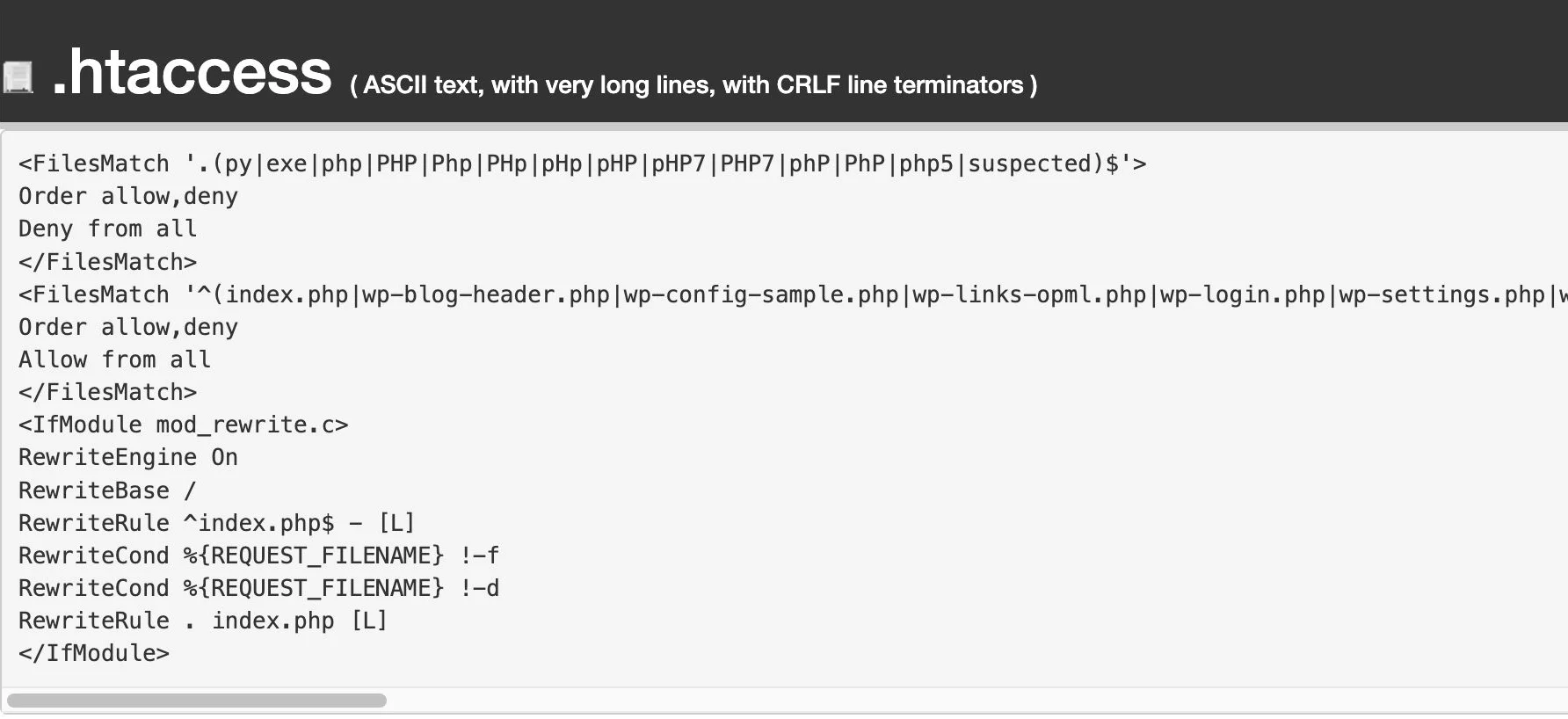
Here’s what an infected file looks like. It has three parts:
- The first
FilesMatchblock denies access to script extensions such as.php,.pyand.exe. This is the signature our script looks for. - The second
FilesMatchblock allows only a list of specific file names, such asindex.phpandwp-login.php. Any other PHP file in that folder stays blocked. - The default WordPress rewrite rules are added at the bottom of the file.
Because WordPress is made of PHP files, you may see:
- wp-admin inaccessible: you can’t reach the login page or the dashboard.
- Broken plugins and themes: parts of the site stop working or load without styles and features.
- 403 Forbidden errors on pages and files that worked before.
These symptoms can have other causes too. If you don’t find injected files, see our WordPress errors guide, which covers 403 errors and wp-admin lockouts.
Since the files are spread across hundreds of folders, cleaning them manually through FTP or your hosting file manager is slow and error-prone.
Why you can’t fix this from the dashboard
Most malware cleanup guides start with “install a security plugin and run a scan”.
That doesn’t work here. Plugins like Wordfence need access to /wp-admin/, which is exactly what the malware blocks.
Your options are limited to opening every folder over FTP and deleting the files one by one, or deleting all .htaccess files blindly.
This is why I made the cleanup script a single standalone file. It doesn’t load WordPress at all, so it works even when your site and dashboard are locked out.
Why you can’t just delete every .htaccess file
Deleting all .htaccess files might look like the quick fix, but many legitimate ones live in your WordPress folders:
- Backup plugins like UpdraftPlus and BackupBuddy protect their backup folders with
.htaccessrules. - WooCommerce uses
.htaccessto protect its upload folders. - Cache plugins add their own rules to cache directories.
- Custom server rules that you or your host added for security.
Removing these can expose private files or break plugins. We need to delete the malicious files and leave everything else alone.
How the cleanup script works
The script scans every subfolder of the folder it’s uploaded to and reads each .htaccess file it finds.
It deletes a file only if the file contains a known malware signature, which is the FilesMatch line the malware injects. Everything else is skipped.
Here are the main features:
- Content-based matching: files are identified by their content, not by their name or location.
- Dry-run mode by default: the script only lists what it would delete. Nothing is removed until you explicitly turn on live mode.
- Secret key protection: the script only runs when you pass your own private key in the URL.
- Clear report: it lists the malware files found, the legitimate files it skipped and any errors.
- No WordPress needed: it works without the dashboard.
The script currently includes two known signature variants, one with single quotes and one with double quotes plus phtml.
Before you start
Malware signatures vary, so the script won’t work out of the box for every infection. You may need to add the signature of your specific malware first.
Before running anything, make sure you have:
- A full backup of your site. Always take one before running an automated deletion script. I use the file manager of my hosting provider’s control panel: select the
public_htmlfolder, compress it into a zip archive and save the zip file outsidepublic_html, so nobody can download it from your site. You can also export your database using phpMyAdmin, which most hosting control panels include. - Access to your hosting file manager or FTP/SFTP, to open a couple of infected files and to upload the script to the root folder of your site (usually
public_html). - The signature of the infection copied to a notepad. We open a couple of infected
.htaccessfiles to find the line that appears in every one of them. You’ll add this line to the script later, so it knows which files to target. For example, in the screenshot above the signature is the firstFilesMatchline, shown below.
<FilesMatch '.(py|exe|php|PHP|Php|PHp|pHp|pHP|pHP7|PHP7|phP|PhP|php5|suspected)$'>How to find your malware signature
Open a couple of the infected .htaccess files
Using your hosting file manager or FTP, open a few of the .htaccess files inside subfolders such as /wp-content/ or /wp-includes/.
The injected files are usually identical, so two or three are enough. Also open a legitimate one (from a backup plugin, for example) so you know what a normal file looks like.
Spot the signature line
Look for the line that appears in every infected file. In the cases I’ve seen, it’s the first FilesMatch line (see the screenshot above). Copy only that line, not the long second one:
<FilesMatch '.(py|exe|php|PHP|Php|PHp|pHp|pHP|pHP7|PHP7|phP|PhP|php5|suspected)$'>If your line matches one of the two variants already in the script, you can skip the next step.
Add it to the script
If your malware uses a different line, copy it exactly and add it to the $malwareSignatures array in cleanup.php:
$malwareSignatures = [
    "<FilesMatch '.(py|exe|php|PHP|Php|PHp|pHp|pHP|pHP7|PHP7|phP|PhP|php5|suspected)$'>",
    '<FilesMatch ".(py|exe|phtml|php|PHP|Php|PHp|pHp|pHP|pHP7|PHP7|phP|PhP|php5|suspected)$">',
    'PASTE_YOUR_SIGNATURE_LINE_HERE',
];Each signature has to match the text in the file exactly, including quotes, so copy and paste it instead of typing it.
The cleanup script
Here’s the complete cleanup.php script.
<?php
$secret = 'CHANGE_THIS_SECRET';
if (($_GET['key'] ?? '') !== $secret) {
    die('Unauthorized');
}
$rootDir = __DIR__;
// All known malware signatures - add more here if you find new variants
$malwareSignatures = [
    "<FilesMatch '.(py|exe|php|PHP|Php|PHp|pHp|pHP|pHP7|PHP7|phP|PhP|php5|suspected)$'>",
    '<FilesMatch ".(py|exe|phtml|php|PHP|Php|PHp|pHp|pHP|pHP7|PHP7|phP|PhP|php5|suspected)$">',
];
$dryRun = ($_GET['dry'] ?? '1') === '1';
$deleted = [];
$errors = [];
$skipped = [];
function isMalware(string $contents, array $signatures): bool {
    foreach ($signatures as $sig) {
        if (strpos($contents, $sig) !== false) return true;
    }
    return false;
}
function scanAndDelete(string $dir, array $signatures, bool $dryRun, array &$deleted, array &$errors, array &$skipped): void {
    $items = scandir($dir);
    foreach ($items as $item) {
        if ($item === '.' || $item === '..') continue;
        $fullPath = $dir . DIRECTORY_SEPARATOR . $item;
        if (is_dir($fullPath)) {
            scanAndDelete($fullPath, $signatures, $dryRun, $deleted, $errors, $skipped);
        } elseif ($item === '.htaccess') {
            $contents = file_get_contents($fullPath);
            if ($contents === false) {
                $errors[] = "$fullPath (unreadable)";
                continue;
            }
            if (isMalware($contents, $signatures)) {
                if ($dryRun) {
                    $deleted[] = "$fullPath (DRY RUN - not deleted)";
                } else {
                    if (unlink($fullPath)) {
                        $deleted[] = $fullPath;
                    } else {
                        $errors[] = "$fullPath (permission denied)";
                    }
                }
            } else {
                $skipped[] = $fullPath;
            }
        }
    }
}
scanAndDelete($rootDir, $malwareSignatures, $dryRun, $deleted, $errors, $skipped);
$mode = $dryRun ? '🔍 DRY RUN MODE (nothing deleted)' : '🗑️ LIVE MODE';
echo "<pre>";
echo "=== Malware .htaccess Cleaner — $mode ===\n\n";
echo "✅ " . ($dryRun ? "Would delete" : "Deleted") . " (" . count($deleted) . " malware files):\n";
foreach ($deleted as $f) echo " - $f\n";
echo "\n⚠️ Skipped (" . count($skipped) . " legitimate files):\n";
foreach ($skipped as $f) echo " - $f\n";
echo "\n❌ Errors (" . count($errors) . "):\n";
foreach ($errors as $f) echo " - $f\n";
echo "\nDone. Delete this script immediately after use!\n";
echo "</pre>";You can also get it, together with a README, from this GitHub Gist. If I discover new malware variants, I’ll update the signatures there.
How to run the script
Step 1: set your secret key
Open cleanup.php and change CHANGE_THIS_SECRET to a random private string that only you know:
$secret = 'CHANGE_THIS_SECRET';Don’t leave it as a guessable value. Anyone who knows the key could run the script on your site while it’s uploaded.
Step 2: upload the script
Upload cleanup.php to your WordPress root folder, the same folder that contains wp-config.php.
The script scans the folder it’s in and everything below it.
Step 3: run a dry run first
Open the following URL in your browser, using your own domain and secret key:
https://yoursite.com/cleanup.php?key=YOUR_SECRETIn this mode, nothing gets deleted. The script only reports what it found.
Step 4: review the output
The report has three sections. Check them carefully before going further:
- Would delete: confirm that all of these are malware files.
- Skipped: confirm that your legitimate
.htaccessfiles are in this list. - Errors: files the script couldn’t read or delete, usually because of file permissions.
If a legitimate file shows up under “Would delete”, stop and double-check the signatures in the script.
Step 5: run the live cleanup
When you’re happy with the dry run, add &dry=0 to the URL to actually delete the malware files:
https://yoursite.com/cleanup.php?key=YOUR_SECRET&dry=0Step 6: delete the script
Delete cleanup.php from your server immediately after running it.
If the script doesn’t load, the root .htaccess file may be infected too. In that case, open it in your file manager, check for the signature line and remove it (or restore the file from a backup), then try again.
What to do after cleanup
Removing the files only fixes the symptom. Here’s what to do next:
- Log in to
/wp-admin/and confirm that access is restored. - Check the root
.htaccess. The script also scans the root folder, so if that file contained the signature, it was deleted too. WordPress needs it for permalinks, so restore it from a backup or go to Settings > Permalinks and click Save Changes to regenerate it. - Change all passwords: WordPress users, database, FTP and hosting.
- Update everything: WordPress core, all plugins and all themes. Remove the ones you don’t use.
- Check
wp-config.phpfor injected or obfuscated code. - Scan your site with a security plugin such as Wordfence and look for unfamiliar files in your hosting file manager.
For a complete walkthrough, see our guide on how to remove malware from WordPress.
Common questions
Will this work for every malware variant?
No. The script matches files by a known signature, so it only removes the variants it knows about. If your malware uses a different line, find it in an infected file and add it to the $malwareSignatures array as shown above.
Is it safe to run on a live site?
It’s designed to be safe, but take a full backup first and always run the dry run before the live run. The script deletes only .htaccess files that contain a signature, and it lists everything it skips.
Why does the malware keep coming back?
Because the script removes the injected files, not the way the malware got in. Common causes are outdated plugins or themes, stolen passwords and hidden backdoor files. Until you find and close that entry point, the files can come back. If you’re stuck, see our malware removal service.
Key takeaway
When malware injects .htaccess files into every folder, deleting them all blindly can break your site, and the dashboard isn’t available to help.
Matching files by their content lets you remove only the malicious ones and leave the legitimate ones untouched.
Always take a backup, run the dry run first, delete the script when you’re done and then find out how the infection got in.
Need help cleaning up a hacked WordPress site? Reach out using our contact page, and one of our WordPress experts will help you.