As a WordPress site owner, you’ve likely invested significant time and resources into hardening your site’s security.
You’ve installed security plugins, enforced strong passwords, enabled two-factor authentication, and maybe even implemented a web application firewall.
But there’s one aspect of WordPress security that often goes overlooked: the external connections your site makes through the HTTP API without your explicit knowledge or approval.
The external connections your WordPress site makes every day
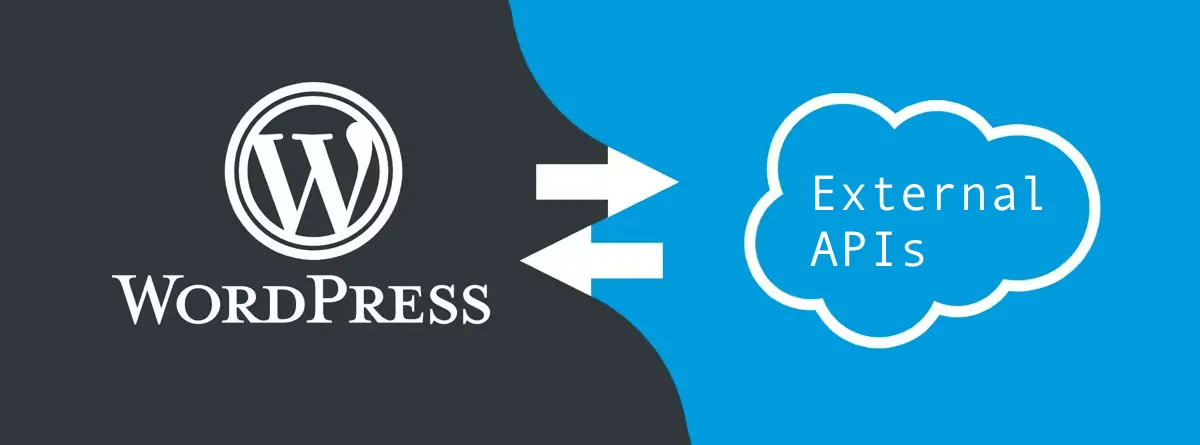
Every day, your WordPress website is quietly reaching out to dozens of external servers for various purposes.
These outbound connections happen in the background, often without any visible indication to you as the site administrator. Plugin update checks, license validations, analytics pings, third-party API calls. The list goes on.
Most of the time, these connections are completely harmless and even necessary for your site to function properly.
WordPress needs to check for core updates, your plugins need to verify licenses, and your analytics tools need to send data.
But here’s the critical question: Do you actually know which external services are being contacted? More importantly, do you have control over which connections are allowed?
The reality is that your installed plugins have unrestricted freedom to make connections to any external API they want. No approval needed.
This may create a potential security risk that many WordPress site owners aren’t even aware of.
Understanding the security implications
Before diving into the solution, it’s important to understand why uncontrolled external connections pose a security risk.
Data Leakage: Plugins might transmit sensitive information to external servers, including site configuration details, user data, or content that should remain private.
Supply Chain Attacks: If a third-party service that your plugin connects to becomes compromised, attackers could potentially inject malicious code or data back into your site.
Performance Issues: Excessive external requests can slow down your site, especially if a remote server is experiencing downtime or latency issues.
Compliance Concerns: For sites operating under regulations like GDPR, HIPAA, or PCI DSS, unmonitored external connections can create compliance nightmares and audit trail gaps.
Attack Surface Expansion: Every external connection represents another potential entry point for attackers. Compromised third-party services can become vectors for malware infections on your WordPress site.
WordPress’s built-in solution: HTTP API control
What many WordPress developers don’t realize is that WordPress core already includes built-in functionality to address this security concern.
You don’t need to install another plugin or implement a complex firewall rule. The solution involves just two simple constants that can be added to your wp-config.php file.
The two-constant whitelist system
WordPress provides two constants that work together to create a robust whitelist system for external connections.
WP_HTTP_BLOCK_EXTERNAL: When set to true, this constant blocks all outgoing HTTP connections by default. Think of it as closing all the doors and windows in your house.
WP_ACCESSIBLE_HOSTS: This constant defines exactly which domains you trust and want to allow connections to. These are the “doors” you’re choosing to keep unlocked.
Implementation is straightforward. Add these lines to your wp-config.php file and edit the accessible hosts accordingly.
define('WP_HTTP_BLOCK_EXTERNAL', true);
define('WP_ACCESSIBLE_HOSTS', 'api.wordpress.org,yourdomain.com');This simple configuration blocks all external connections except to api.wordpress.org (for WordPress core updates) and your own domain.
Who benefits most from this approach?
While not every WordPress site needs this level of control, certain use cases make this security measure particularly valuable.
Enterprise websites: Organizations with strict security policies and compliance requirements benefit from the ability to audit and control all external communications.
Staging and development environments: Staging sites shouldn’t be making live API calls to payment processors, email services, or production analytics platforms. Blocking external connections prevents accidental charges, email sends, or data pollution.
Performance optimization: Reducing unnecessary external requests can noticeably improve page load times and reduce server resource consumption.
Regulated industries: Healthcare, finance, legal, and other industries handling sensitive data need complete visibility into what information leaves their servers and where it goes.
High-security client sites: Agencies managing sites for government entities, financial institutions, or other security-conscious clients can offer this as an additional layer of protection.

The right way to implement connection blocking
Here’s the critical part: Don’t enable blocking blindly.
Implementing these constants without proper research will almost certainly break important functionality on your site.
Step 1: Audit your current connections
Before blocking anything, you need to understand what external connections your site currently makes. The best way to do this is using a plugin like Query Monitor, which provides detailed information about all HTTP requests your site makes.
Install Query Monitor, navigate through your site’s key pages and functions, then review the HTTP requests panel. Try to simulate all possible user actions and workflows on your site.
Step 2: Build your allowlist
Based on the data from Query Monitor, create a comprehensive list of domains that your site legitimately needs to access. Here are common domains you’ll likely need to include:
WordPress Core: api.wordpress.org for core, plugin, and theme updates
Payment processors: If you run an e-commerce site, you’ll need domains for Stripe (api.stripe.com), PayPal, or whatever payment gateway you use
Email service providers: Your SMTP server or email service provider’s domain (like smtp.yourdomain.com or api.sendgrid.net)
CDN and media services: If you use services like Cloudinary that your plugins interact with server-side to fetch, transform, or manage media files
Essential third-party APIs: Weather APIs, mapping services, social media integrations, or other services critical to your site’s functionality
Step 3: Implement and test thoroughly
Add the constants to your wp-config.php file with your complete allowlist. Then thoroughly test every aspect of your site. For example:
- Test user registration and login.
- Process a test transaction if you have e-commerce functionality.
- Verify that contact forms send emails properly.
- Verify plugin and theme updates still work.
Step 4: Monitor and maintain
Your allowlist isn’t a “set it and forget it” configuration. As you add new plugins, integrate new services, or update existing functionality, you’ll need to adjust your allowlist accordingly.
Keep Query Monitor installed on your site but leave it deactivated in production. Activate it only when you need to audit connections and check what’s being blocked.
Broader WordPress security context
While controlling external connections is powerful, it’s just one piece of a comprehensive WordPress security strategy. This measure works best when combined with other security best practices.
Regular updates: Keep WordPress core, themes, and plugins updated. Outdated software is one of the most common entry points for attackers.
Strong authentication: Implement strong passwords, two-factor authentication, and limit login attempts to prevent brute force attacks.
Principle of least privilege: Give users only the permissions they absolutely need. Not everyone needs administrator access.
Regular backups: Maintain automated, off-site backups so you can quickly recover if something goes wrong.
Security monitoring: Use security plugins such as Wordfence to scan for malware, monitor file changes, and alert you to suspicious activity.
SSL/HTTPS: Encrypt all data in transit between your site and your visitors.
Web Application Firewall: Use Cloudflare or similar WAF services to filter malicious traffic before it reaches your server.
Database Security: Use strong database passwords, change the default table prefix, and consider restricting database access by IP address.
File Permissions: Set proper file and directory permissions to prevent unauthorized modifications.
Performance benefits beyond security
Interestingly, controlling external connections doesn’t just improve security. It can also enhance your site’s performance.
Every external HTTP request adds latency to your page load times. By eliminating unnecessary external calls, you reduce the number of potential points of failure and speed up your site.
Key takeaway
Not every WordPress site needs the level of control that blocking external connections provides. For a simple blog or brochure site with just a few trusted plugins, the default WordPress behavior is probably fine.
However, if you’re managing client sites, working in regulated industries, handling sensitive data, or simply want to know exactly what your WordPress installation is doing behind the scenes, this functionality is invaluable.
It already exists in WordPress core and is as easy as adding two constants to your wp-config.php file.
WordPress security isn’t about implementing a single silver bullet solution. It’s about layering multiple security measures to create defense in depth.
Controlling external connections through the HTTP API is one more tool in your security toolkit. It’s a simple, effective way to reduce your attack surface and gain visibility into your site’s network activity.
Take the time to audit your site’s external connections, build a thoughtful allowlist, and implement these constants properly. Your future self (and your clients) will thank you for the peace of mind that comes with knowing exactly what your WordPress site is doing when you’re not looking.
Need help implementing WordPress HTTP API controls or other security configurations?
Get in touch now to get free consultation from one of our WordPress experts and find out how we can implement these security measures for you.