InvalidAuthenticationToken: Lifetime Validation Failed Error
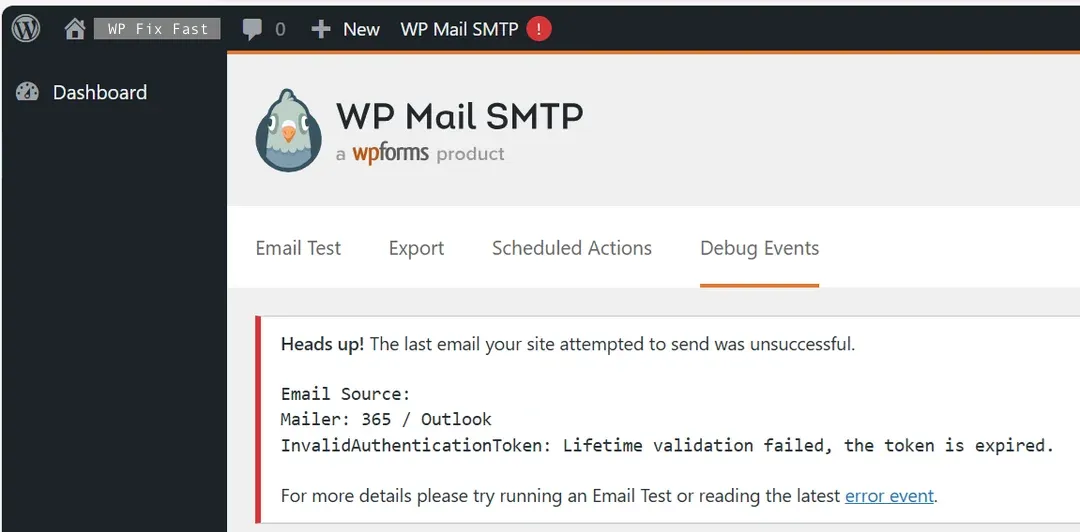
If you have configured Microsoft 365 / Outlook to send emails through your WordPress website, you may have encountered the SMTP error:
InvalidAuthenticationToken: Lifetime validation failed, the token is expired.
When this happens, emails will fail to send, and your email logs may fill with delivery errors.
Is this caused by a plugin bug, a server issue, or a misconfiguration in Office 365 / Outlook?
Let’s break it down.
WP Mail SMTP Office 365 Not Working
How Modern Email Authentication Works (Microsoft 365 & Google Workspace)
Modern email systems like Microsoft 365 and Google Workspace have moved away from traditional SMTP password-based authentication to more secure protocols, notably OAuth 2.0.
Instead of storing email passwords on third-party systems (like your WordPress site), OAuth allows applications to request access tokens from the email provider.
These tokens authorize the application to send emails on behalf of a user or domain. Tokens have expiration times for security, and applications are expected to securely refresh them before they expire.
When the application is improperly configured, such as missing delegated permissions, incorrect redirect URIs, or disabled refresh token flows, it can lead to authentication errors like the one you’re troubleshooting.
A detailed debug error message would look like the following:
Versions:
WordPress: 6.8.1
WordPress MS: No
PHP: 8.2.28
WP Mail SMTP: 2.8.0

Params:
Mailer: outlook
Constants: No
App ID/Pass: Yes
Tokens: Yes

Debug:
Mailer: Outlook invalid_client
AADSTS7000222: The provided client secret keys for app 'Apllication ID' are expired.
Visit the Azure portal to create new keys for your app: https://aka.ms/NewClientSecret, or consider using certificate credentials for added security:
https://aka.ms/certCreds. Trace ID: ddc7 Correlation ID: 80f0

Timestamp:
InvalidAuthenticationToken: Lifetime validation failed, the token is expired.
Date:
Mailer: Outlook invalid_client
AADSTS7000222: The provided client secret keys for app 'Application ID' are expired.
Visit the Azure portal to create new keys for your app: https://aka.ms/NewClientSecret, or consider using certificate credentials for added security: https://aka.ms/certCreds. Trace ID: ddc7 Correlation ID: 80f0
Timestamp:
Mailer: Outlook
InvalidAuthenticationToken: Lifetime validation failed, the token is expired.
What’s the “InvalidAuthenticationToken” Error and Why Does It Happen?
This error is not caused by your WordPress SMTP plugin itself. These plugins, like WP Mail SMTP, act as a bridge, allowing WordPress to send emails using your email provider.
If you’re using a basic SMTP configuration (such as from your hosting provider or cPanel), authentication is done via a static username and password. In those setups, tokens aren’t involved.
However, if you’re using Microsoft 365 (formerly Office 365) to send email, your SMTP plugin typically uses OAuth 2.0 authentication.
This requires you to register an Application in your Microsoft Entra admin center (previously known as Azure Active Directory).
The error means that the access token issued by Microsoft has expired and is no longer valid.
Unlike some systems that automatically refresh tokens in the background, WordPress SMTP plugins like WP Mail SMTP do not support automatic token renewal for Microsoft 365.
Microsoft Entra (formerly Azure AD) limits token validity, typically to a maximum of 24 months, after which the token must be manually reauthorized.
This usually involves going through the app authorization flow again in the SMTP plugin settings. If you’re seeing this error, it’s likely because that token expiration time has passed and the token is no longer valid for use.
How to Create a New Token for Your Existing Application
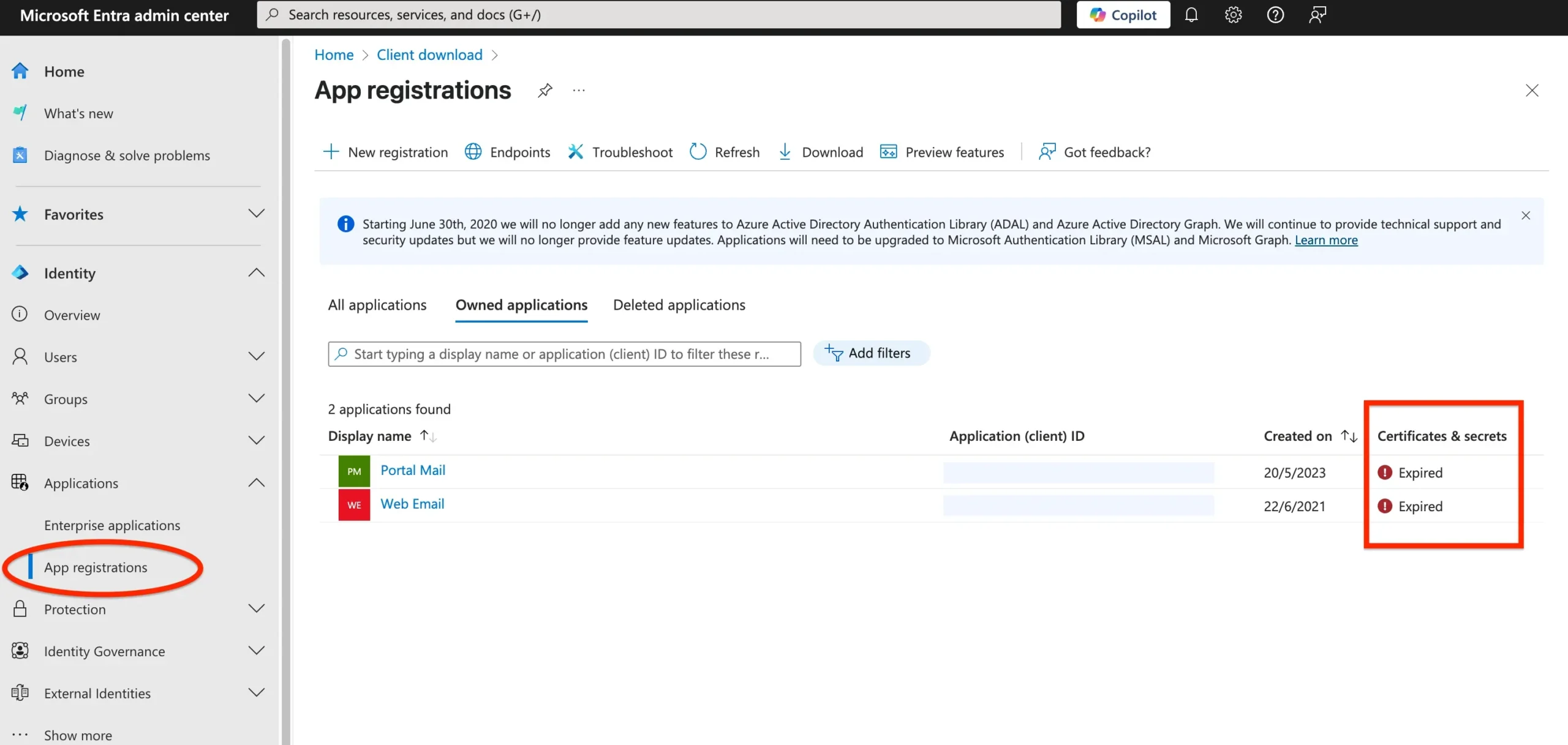
Login to Entra admin center and navigate to Applications > App registrations.
On this screen you can see your existing Application names, Application (client) IDs, and their statuses (expired or active).
Your Application ID is static and won’t change or expire.
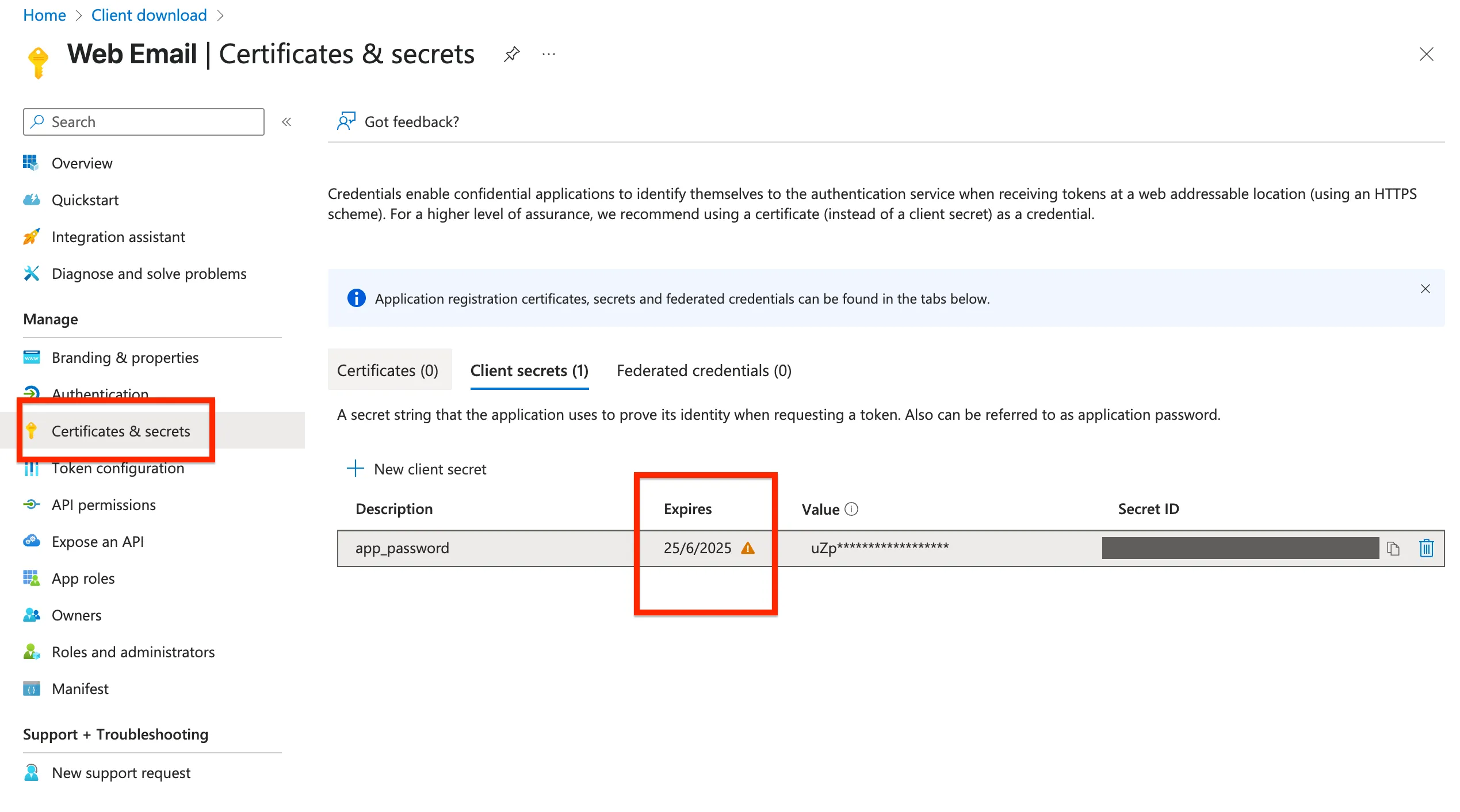
What actually expires is the token ID or the Application password, as seen on the image below.

If you can’t find your existing Application, you can create a new application by following the steps provided at the official documentation of Microsoft Entra website.
How to Update Your Application Password
Login to Entra admin center and navigate to Applications > App registrations.
Click your Application name. (e.g. Web Email in our screenshot)
Navigate to Certificates & secrets.
Delete the expired client secret by clicking the trashcan icon.
Click New client secret to proceed.
A small popup will appear. Enter any description such as app_password and choose the expiration date.
As of May 2025, Microsoft allows maximum 2 years for the token expiration date.

As soon as you submit this form, your new client secret key will appear as seen below.

Value is the new Application Password that you need to configure / update at your WP Mail SMTP settings.
Click the copy icon next to the Value to copy it to your clipboard.
Next, go to your WordPress SMTP plugin settings.
Paste the new Application Password that you have generated.
Click Save Settings to save it.
That’s it. Your WordPress website should be able to relay emails through Microsoft 365 now.
How to Test Your Updated Application Password
Navigate to your WordPress Dashboard > Email Test tool of your SMTP Plugin.
Type in your email and click Send Email.
If you’ve completed the previous steps properly, you should see the success message, similar to the image below.

Conclusion
The “InvalidAuthenticationToken: Lifetime validation failed” error is a result of Microsoft 365’s security model that enforces token expiration for app-based authentication.
While this ensures better protection of your email account, it also means that periodic reauthorization is necessary, especially when using WordPress SMTP plugins that don’t support automatic token renewal.
If you’re relying on Microsoft 365 to send emails from your WordPress site, make sure to note the token’s expiration date and renew access through the plugin settings before it lapses.
For those who find this setup a bit tricky or would rather have it handled by our team of WordPress experts, our One-off Task service includes full Microsoft 365 email setup for just $59 USD.
Check out our Fix My WordPress Website page for more details, and feel free to contact us if you have any questions or need assistance.