WooCommerce empty cart issue
Recently, one of our customers contacted us regarding the WooCommerce cart is empty after adding products issue which looked simple at first but turned out to be a challenging problem to solve.
The problem was simple.
Guest users (logged-out users) were unable to add products to the cart, either through WooCommerce shop (category pages), or single product pages.
No matter what they did, shopping cart was empty after adding products.
On the contrary, admin user, or any other logged in customer were able to add the products to the cart as expected.
There were no visible PHP errors on the page, JavaScript errors in the browser console, or error records in the error_log file, even though WP_DEBUG was enabled in wp-config.php.
With no error messages to guide me, the troubleshooting process became more complex.
Read on to discover why it took me a couple of hours to solve this issue and the solution that finally worked.

Solutions I tested and ruled out
WordPress cache and server-side cache
Initially, I thought that this is a simple cache issue because cart worked as expected for logged-in users.
Checked and confirmed that no caching plugin was active and running, including mu-plugins (must use plugins).
Cache problems aren’t always plugin-related. Hosting providers often implement their own server-level caching that can cause similar issues.
Some web hosts like WP Engine is known to cache regular pages on the server side, excluding dynamic WooCommerce pages like /my-account/, /cart/ and /checkout/.
I ruled this out by confirming with the client’s hosting provider that no server-side caching was configured.
If you are running Varnish on your server, check the cart functionality by disabling Varnish.
Error logs
Having checked multiple sources for error messages:
- PHP errors displayed on the page
- JavaScript errors in the browser console
- Server error logs in the
error_logfile after enabling WP_DEBUG
I was unable to find a clue pointing to the root cause of the empty cart issue.
Plugin conflicts and updates
Plugin conflicts or outdated plugins are a common cause of WooCommerce cart issues.
I temporarily deactivated all plugins except WooCommerce to see if the cart would function properly.
With only WooCommerce active, the problem persisted, ruling out plugin conflicts.
The site was using an older WooCommerce version due to a payment gateway plugin compatibility issue.
I deactivated the payment plugin and updated WooCommerce to the latest version, but the cart still didn’t work.
This confirmed the issue wasn’t related to outdated plugins or the payment gateway.
Toggle AJAX cart button
When I checked the theme settings, AJAX add to cart buttons were enabled.
So, to test this out I disabled the AJAX add to cart button and replaced with a regular button. Nothing changed.
I even tried the manual way using an URL, replacing the 123 with the actual product ID.
https://yoursite.com/?add-to-cart=123
Still no luck.
On some themes, such as Flatsome, actually enabling the AJAX add to cart buttons might help.
Ensure you test both options.
This is important if you are using other plugins that use AJAX filtering and might conflict with your theme, or other plugins.
WooCommerce default pages
Ensured all default WooCommerce pages are set.

Also checked the necessary shortcode [woocommerce_cart] present on the Cart page.
If necessary, delete the existing default WooCommerge pages and regenerate them.
To do this Go to Dashboard > WooCommerce > Status. Click on Tools tab from the top left area. Scroll down to “Create default WooCommerce pages” Click on Create Pages.

WooCommerce tools
Using the tools under WooCommerce > Settings, cleared transients and customer sesssions.

Unfortunately, clearing WooCommerce transients, expired transients, and customer sessions also didn’t solve the issue.
Save permalinks
Sometimes the .htaccess file contains incorrect rewrite rules that prevent add-to-cart AJAX requests from working.
Using the File Manager of the hosting control panel, I navigated to the public_html (root folder of WordPress installation), renamed the old .htaccess file to .htaccess_old (for backup), then re-saved permalinks at Settings > Permalinks.
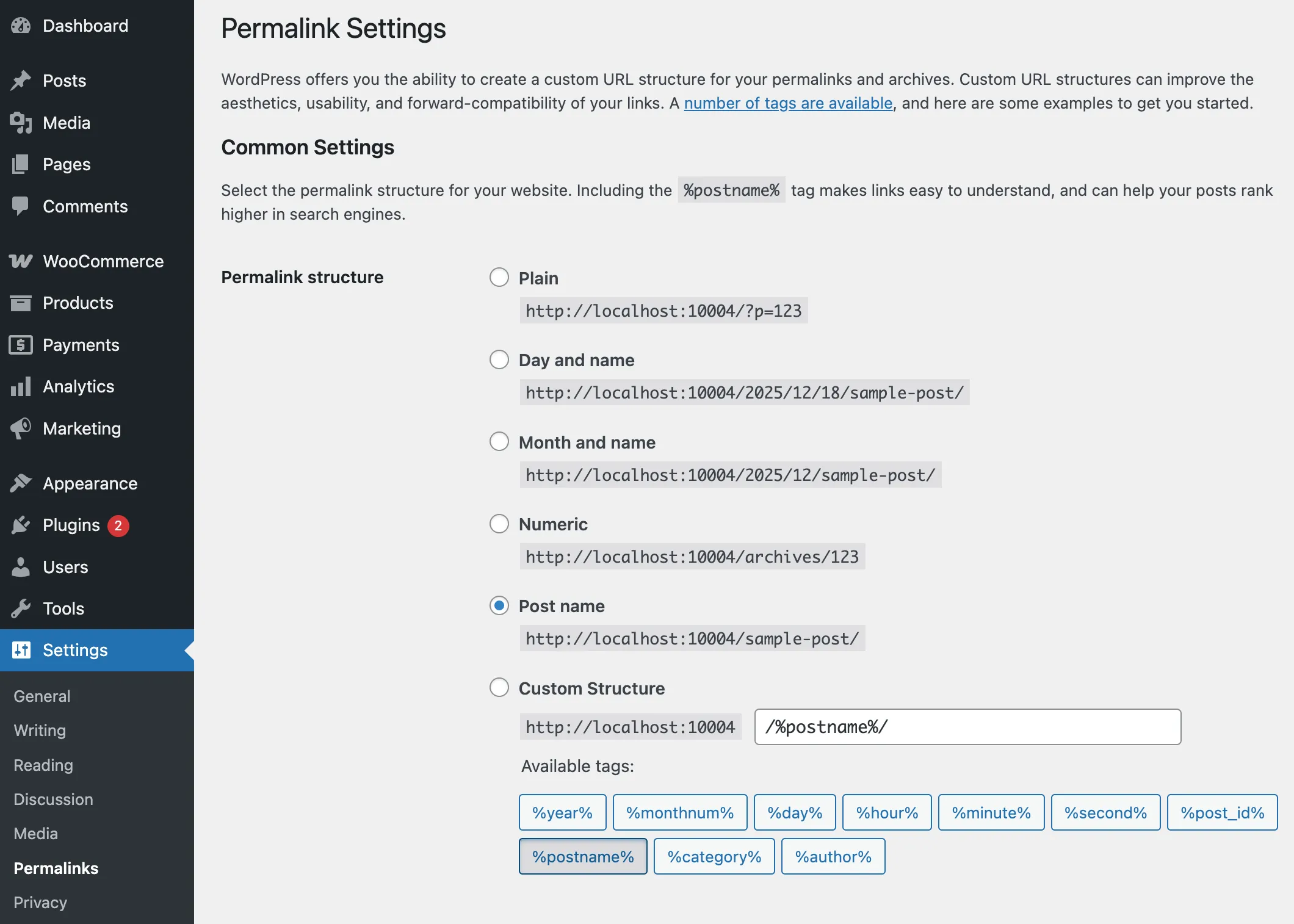
This generated a fresh .htaccess file with clean rewrite rules, which can fix routing issues that cause add to cart failures.
However, in my case this didn’t fix the problem either.
Solutions that helped other people
Having no luck with the solutions I tried above, I did a quick search to check other people’s solutions.
WP-Optimize
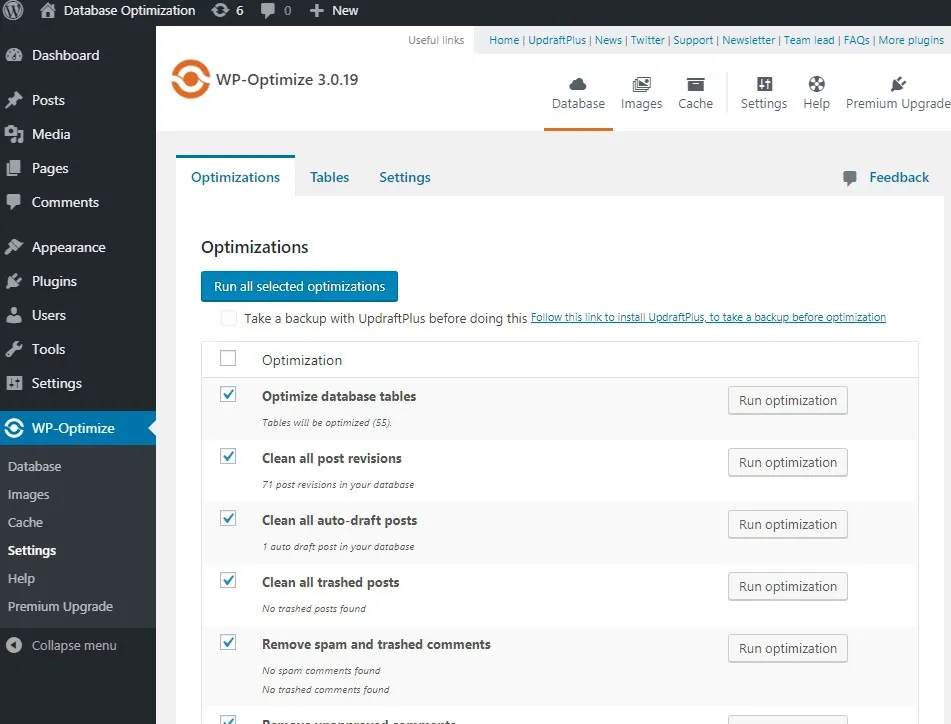
Use WP-Optimize plugin to optimize database tables.
Before attempting this, backup your database using UpdraftPlus plugin.
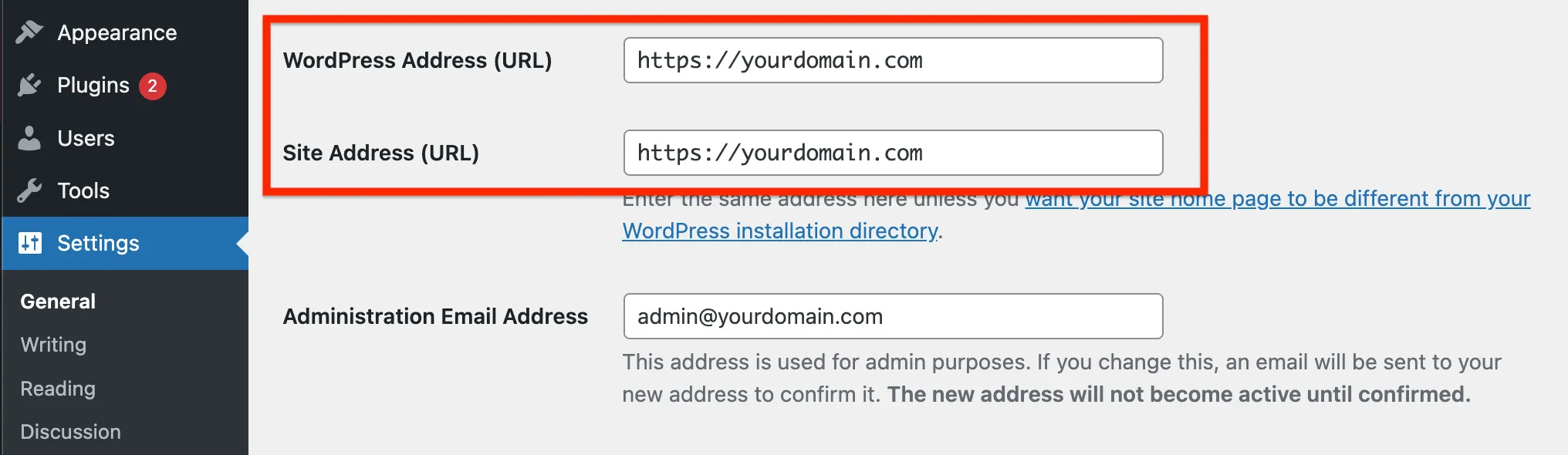
WordPress site URLs and valid SSL certificate
Ensure WordPress Address (URL) and Site Address (URL) match.
Check both URLs start with https:// and you have a valid SSL certificate.
Database table woocommerce_sessions
One of the users that has a similar add to cart issue reported that his WordPress database had woocommerce_sessions table but for some reason its structure was corrupted.
Using PHPMyAdmin or similar tool of your hosting control panel, you can check the table’s properties.
The key thing to check here is the session_key column, which should be the primary key and also must be set to AUTO_INCREMENT.

In my case, I checked the table structure and it was already as in the screenshot above. However, the cart was still empty after adding products.
But, the importance and necessity of the woocommerce_sessions table gave me the idea to where to search the problem and further narrow down the possibilities, which I explained in the solution section below.
Hint: woocommerce_sessions table is used to store logged-out users’ temporary session data and also responsible for keeping their cart contents.
Cart page must not have a parent
Some users that faced the empty cart issue found this helpful.
Ensure your cart page doesn’t have a parent page.
How I solved
Having spent a couple of hours on the “empty cart after adding products” issue, none of the solutions I listed above didn’t work for me.
I decided to dig deeper on how guest sessions are handled by WooCommerce.
Having inspired by one of the users’ suggestion about woocommerce_sessions database table, I found out that when guest users, new rows should be added to the woocommerce_sessions table, keeping all the temporary cart contents.
Using the incognito Chrome window, I tried adding a few products to the cart while keeping an eye on the woocommerce_sessions table using PHPMyAdmin tool open on another window.
No rows were added to the table and finally, I found what’s not working!
With this discovery, I did a few tests that helped me exactly pinpoint at what stage WooCommerce was failing to write (save) to the woocommerce_sessions table.
I coded this snippet to force WooCommerce to save guest sessions using the woocommerce_set_cart_cookies hook.
Added to client’s site using the Code Snippets plugin and the issue got resolved!
If you have a child theme, you can also add the same code to the bottom of your functions.php file in your theme.
add_action('woocommerce_set_cart_cookies', 'force_save_guest_session', 10, 1);
function force_save_guest_session($set) {
    // If user is not logged in and session exists, force save
    if (!is_user_logged_in() && WC()->session && WC()->session->has_session()) {
        WC()->session->save_data();
    }
}
Conclusion
Sometimes, certain conditions might break your WordPress website’s most fundamental functionality.
A seemingly minor configuration issue or plugin conflict can cascade into a critical problem that directly impacts your business.
In this case, our client lost a significant amount of revenue during a peak season, but managed to get back to business quickly once we identified and resolved the empty cart issue.
Lessons learned:
- The value of regular monitoring,
- The importance of keeping a recent and working backup,
- The need for a systematic troubleshooting approach when issues arise.
If you’re experiencing similar WooCommerce cart problems, remember to check session handling first, review recent plugin updates, try to remember the last change before the issue arise, verify your caching configuration, and examine any custom code that might interfere with cart functionality.
Most importantly, don’t wait until peak season to test your checkout process thoroughly. Regular testing can catch these issues before they cost you sales.
Our WordPress maintenance plans include regular expert testing of your essential website functionalities, so you can focus on growing your business while we ensure everything works flawlessly.