I’ve recently received a WordPress support request for a rather uncommon issue: WordPress database error Commands out of sync; you can't run this command now for query SELECT...
Client reported that the error_log is getting full of these lines and site is responding very slowly.
Initially, I though that this was a simple plugin, scheduled task, or a corrupted database table issue that constantly bugs the WordPress.
But digging deep, it turned out to be something else.

What is “WordPress database error Commands out of sync; you can’t run this command now” and when it happens
The “Commands out of sync; you can’t run this command now” error is a MySQL database error that occurs when there’s a mismatch in the expected sequence of database operations.
Here’s what causes it and when it typically happens:
What causes this error
This error happens when MySQL expects database operations to follow a specific sequence, but that sequence gets disrupted. The most common causes are:
- Incomplete Result Processing: When a previous database query returned results that weren’t fully processed or closed before attempting a new query. MySQL requires you to fetch all results from a query before running another one.
- Multiple Active Queries: Attempting to run multiple queries simultaneously on the same database connection when MySQL expects them to be executed sequentially.
- Connection State Issues: The database connection gets into an inconsistent state, often due to interrupted queries or improper connection handling.
When it typically occurs
In WordPress specifically, this error commonly happens during:
- Plugin or Theme Issues: Poorly coded plugins or themes that don’t properly handle database connections, especially those making complex or multiple database queries.
- Database Import/Export Operations: When importing large databases or during migration processes where the operation gets interrupted.
- High Traffic Periods: When your site experiences heavy load and multiple database operations compete for the same connection.
- Backup Operations: During automated backup processes that perform extensive database operations.
- Custom Database Queries: When custom code uses direct MySQL queries without proper connection management.
Things that didn’t work
Before I do any changes on a site, I always start with creating a full backup using UpdraftPlus plugin. The backup process was slow but it eventually backup completed successfully.
Deactivate all plugins
Rather than deactivating all plugins at once, I deactivated them one by one to find the plugin causing this error, while watching the error_log getting filled with the errors (almost every second).
So, it took a short while to deactivate all but it didn’t work. I was still getting the same errors at the same rate!
Repair WordPress database
Next, I repaired and optimized WordPress database tables using the built-in repair tool.
You can enable WordPress’s built-in database repair tool by adding a specific constant to your wp-config.php file. Here’s how to do it:
Add this line to your wp-config.php file, preferably near other define statements but before the “That’s all, stop editing!” comment:
define('WP_ALLOW_REPAIR', true);Once you’ve added this constant, you can access the repair tool by visiting:
https://yourdomain.com/wp-admin/maint/repair.php
Replace yourdomain.com with your actual domain name.
Click either Repair Database or Repair and Optimize Database buttons to proceed.
Make sure to remove the WP_ALLOW_REPAIR line after you use the tool.
I used the “Repair and Optimize Database” option. It took only a couple of seconds to complete. But the issue was persisting. Website was still slow and error_log was still getting filled.
It was time to look for other sources of error and external factors that might be overwhelming the WordPress site.
How I identified the cause of the error
I enabled Wordfence live traffic and started watching.
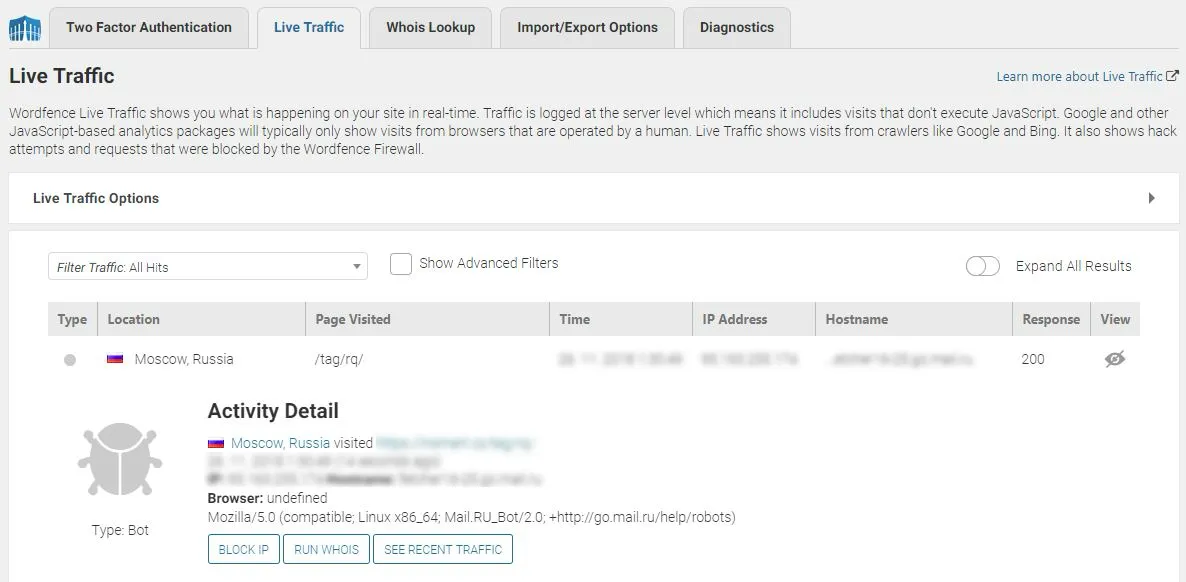
It was clear that, site was bombarded with bot traffic from random locations around the World.
Next, I checked the server’s raw access logs to find a pattern that I can use for blocking bot requests.
Most of the lines had the following request pattern:
/product-category/keyword/page/2/?_wpnonce=0e6d0fd0cf&add_to_wishlist=21241&gridcookie=list
It was obvious that the site was under some kind of DDoS attack, with bunch of querystrings that do not correspond to any active plugin on the website.
These never ending requests were causing the hosting provider’s database server to fill connection pools. When too many requests come in, the available connections in the pool get exhausted, leading to the “Commands out of sync” error.
How I fixed the issue
It were easier to block the bot requests if the site had been using Cloudflare. But the site didn’t have any firewall other than the Wordfence plugin’s.
Lucikly all requests had the same querystrings which weren’t related to any actual features of the websites.
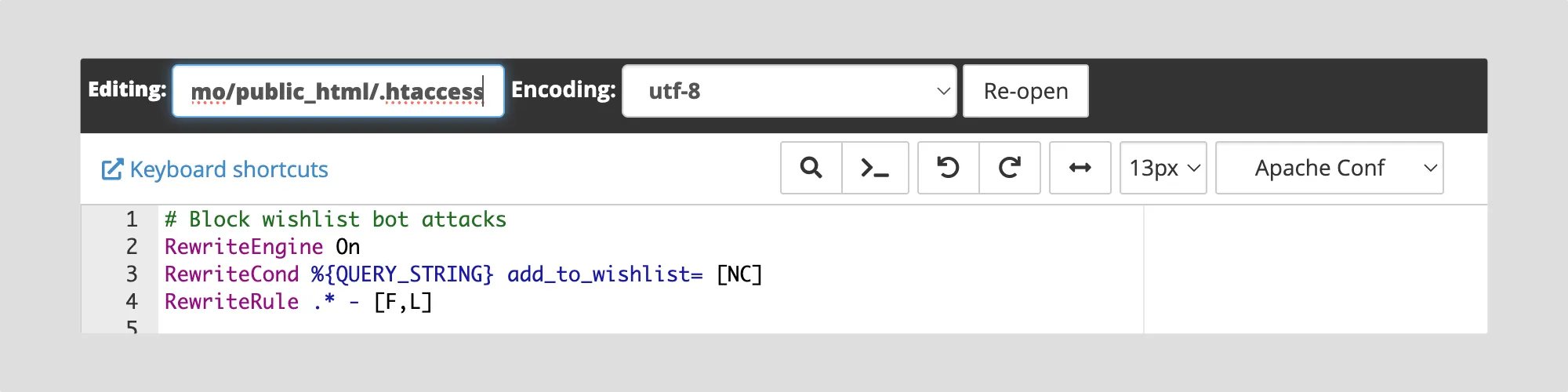
I blocked the requests by adding the following lines to the .htaccess file
RewriteEngine On
RewriteCond %{QUERY_STRING} add_to_wishlist= [NC]
RewriteRule .* - [F,L]
I used only add_to_wishlist keyword because it was present in all request and the site didn’t have a Wishlist plugin that was being used.
If you are under similar attack, you should analyze the request pattern and adjust the Rewrite rules accordingly.
Key takeaway
Sometimes the solution isn’t where you expect to find it.
When your WordPress core, plugins, and database all check out fine, expand your scope to include server logs, traffic patterns, and external factors that could be overwhelming your site’s resources.
WP Fix Fast provides comprehensive WordPress troubleshooting and maintenance services to identify and resolve complex issues that go beyond standard WordPress fixes.
Our expert team analyzes server logs, monitors traffic patterns, and investigates hosting environment factors to pinpoint the root cause of database errors, performance issues, and connectivity problems.
You can use our one-off fix service for these kinds of problems, getting direct help by one of our WordPress experts. without any ongoing commitment. Perfect when you need professional help to solve tricky issues that require server-level investigation.
Feel free to contact us if you’re dealing with persistent WordPress issues that seem to have no clear cause. We’re here to help.