You may encounter one of the errors below while uploading mp4, mp4, image, or other types of files to the Media Library via WordPress dashboard:
- Upload error: Unexpected response from the server.
- Unexpected response from the server. The file may have been uploaded successfully. Check in the Media Library or reload the page.
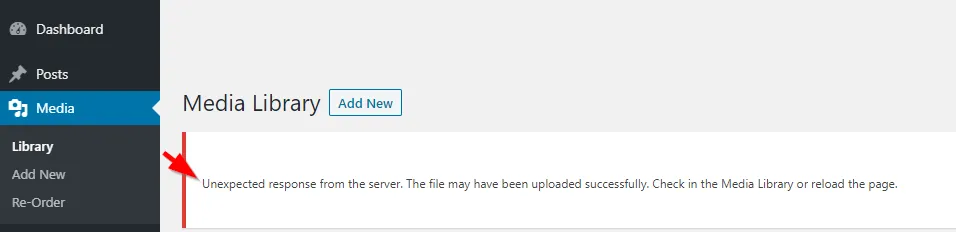
Why does WordPress show an unexpected response from the server error
These WordPress upload errors are primarily caused by one of the following reasons that prevent certain file types from being processed correctly:
- Server configuration issues including MIME type restrictions,
- PHP directives (memory_limit, upload_max_filesize, post_max_size),
- Usage of special characters or white spaces in the uploaded file name,
- Incorrect file permissions on wp-content/uploads folders,
- Plugin or theme conflicts,
- Server timeout issues
What causes WordPress upload error
Most common cause of the WordPress upload error is MIME type restrictions.
MIME (Multipurpose Internet Mail Extensions) types are standardized identifiers that tell servers and browsers what type of file they’re dealing with.
For example, an MP4 video file has the MIME type “video/mp4” while a JPEG image has “image/jpeg”.
WordPress maintains a whitelist of allowed MIME types for security reasons, and if you try to upload a file type that isn’t on this list, the server will reject it with an “unexpected response” error.
This is particularly common with video files, audio files, or less common document formats that WordPress doesn’t allow by default.
Quick Note:
MIME types are different from file extensions. While file extensions (like .mp4, .jpg, .pdf) are just the ending part of the filename, MIME types are the actual identifiers that tell the server what the file contains.
WordPress checks both the extension and verifies it matches the expected MIME type for security.
How to fix the Unexpected response from the server error
To fix this, I recommend you try the mime type solution first. If that doesn’t solve, try the other methods that might help you solve the Upload error – Unexpected response from the server error.
Add this snippet using Code Snippets plugin or paste into your child theme’s functions.php
function my_mime_types($mimes) {
  $mimes['mp4'] = 'video/mp4';
  return $mimes;
}
add_filter('upload_mimes', 'my_mime_types');
In this example, I added a mime type for mp4 video files. Change the extension and type according to the type of file you are trying to upload.
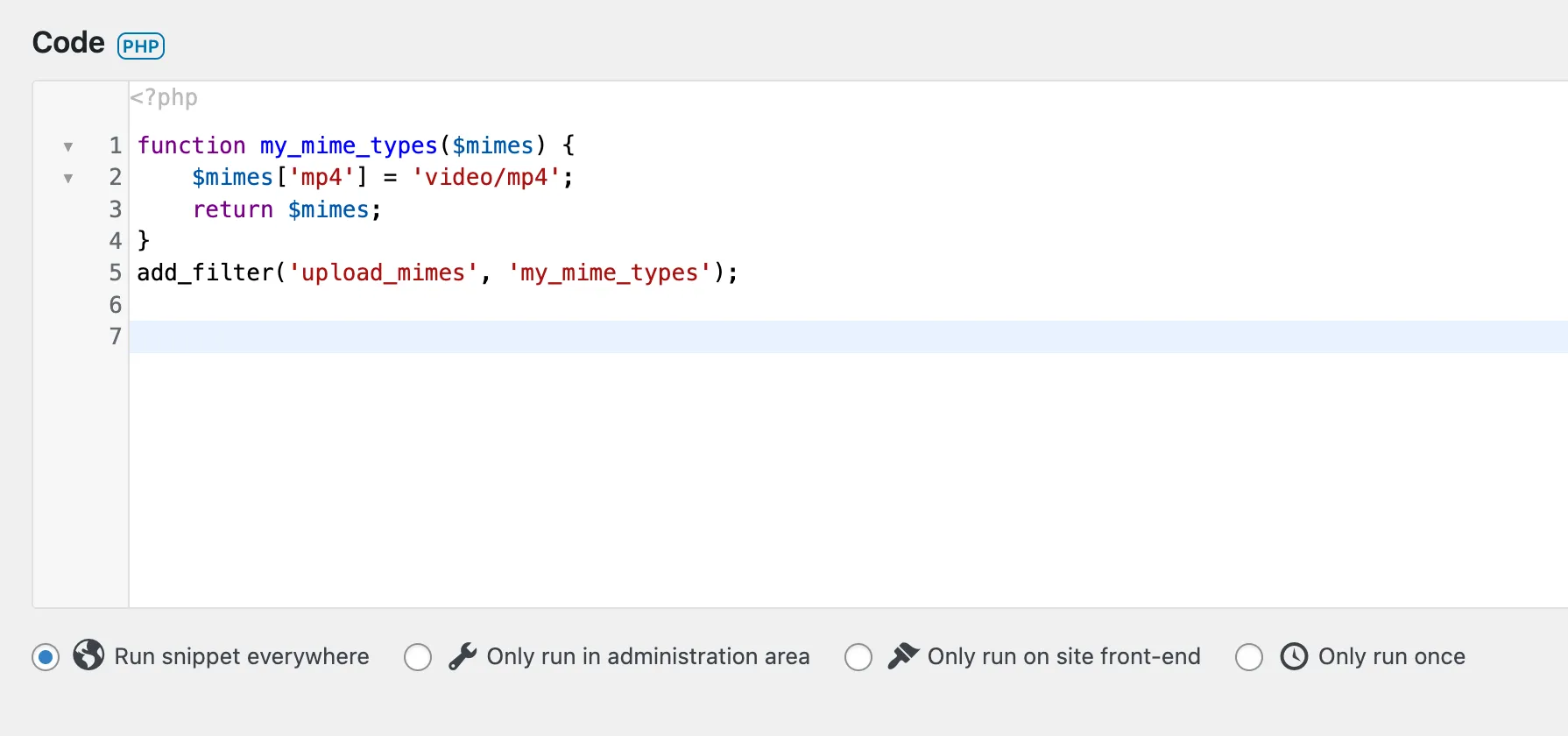
For example, for an mp3 file, change $mimes['mp4'] = 'video/mp4'; to $mimes['mp3'] = 'audio/mpeg';
Refer to the common media types from MDN docs for your specific type of file.
If that doesn’t solve the issue, try the following suggested fixes.
Additional troubleshooting steps
Adjust PHP options
Inadequate PHP options are the second most common cause to WordPress upload error.
Try adjusting these PHP values according to the file size you are trying to upload.
In a typical Apache web server environment these are set using php.ini or user.ini file.
- Increase php memory_limit (at least 1024MB)
- Increase upload_max_filesize (a value larger than you are trying to upload)
- Increase post_max_size (a value larger than upload_max_filesize)
- Increase max_execution_time (at least 300 seconds)
Avoid special characters
- Usage of special characters or white spaces in the uploaded file name.
- Rename files using only letters, numbers, hyphens, and underscores.
Check file and folder permissions
- Set wp-content to 755
- Set wp-content/uploads to 755
- Set files to 644
Plugin or theme conflicts
- Deactivate all plugins temporarily, then reactivate one by one to identify the problematic plugin.
- Popular security plugins like Wordfence, Sucuri Security, or iThemes Security may flag legitimate files as potential threats.
- If a security plugin is causing the issue, you may need to whitelist specific MIME types or file extensions in the plugin’s settings rather than completely disabling it.
- This approach maintains your site’s security while resolving the upload issue
WordPress running on Nginx
If your WordPress is running on Nginx, in your nginx.conf file
- Step1: Increase the value of “client_max_body_size” to 256M (or more as needed)
- Step 2: Restart nginx
Clear browser cache
Browser cache can cause problems during file uploads.
Try clearing your browser cache and attempting the upload again.
Alternatively, you can use incognito mode (private window) of your browser.
Check server storage
Confirm that there is enough available storage space on your hosting account.
If your disk quota is running out of space, it may prevent file uploads.
Need further help?
At WP Fix Fast, we fix any WordPress issue that breaks your site.
Fix a broken site is included in all our WordPress Support Plans as well as a one-off task in our Fix My WordPress Site service.
If none of the troubleshooting steps above solved your issue, let our experts handle it for you.