A common PHP error in WordPress is the memory limit error, which appears as:
Fatal error: Allowed memory size of X bytes exhausted (tried to allocate Y bytes) in /path/to/file.php on line Z.
This happens when WordPress exceeds the allocated PHP memory limit, often due to heavy plugins, themes, or scripts.
Increasing the memory limit in wp-config.php or php.ini usually fixes it.
What is PHP Memory Limit?
WordPress is built using PHP, a popular server-side programming language.
Your hosting provider sets a default amount of memory to help prevent overuse of server resources.
The default PHP memory limit set by hosting providers varies based on the hosting environment and the specific hosting plan.
In shared hosting environments, it’s common to see default PHP memory limits ranging from 32 MB to 128 MB.
Why WordPress Runs Out of Memory?
If your website requires more memory due to the following reasons, you may need to increase the PHP memory limit to prevent PHP fatal errors like the “Allowed memory size exhausted” message.
- Resource-Intensive Plugins or Themes: Some plugins (like page builders, SEO tools, or eCommerce plugins) require more memory to function properly, especially when they handle large amounts of data or complex tasks.
- Large Media Files: Uploading and managing large images, videos, or other media files can consume a lot of memory, particularly when they are processed or resized.
- Complex or Custom Code: If your site uses custom-built features, complex themes, or specialized code, it may require more memory to execute efficiently.
- Heavy Database Queries: Sites with large databases or complex queries may run out of memory if the server can’t handle the load of retrieving and processing large amounts of data.
- WordPress Updates and Maintenance: Certain WordPress updates, especially when updating the core, themes, or plugins, may require additional memory to complete without errors.
How to Increase PHP Memory Limit
By default, WordPress automatically tries to increase the PHP memory limit if it is less than 64 MB. However, 64 MB is often not high enough for most modern themes and plugins.
You can edit the files mentioned in option 1, option 2, and option 3 using an FTP client such as FileZilla, or File Manager of your WordPress hosting provider. Make sure to backup the file before attempting to edit.
Option 1: wp-config.php file
wp-config.php is found at the root folder of your website where WordPress core files are located at. Usually, this will be the public_html folder.
Paste the following line just before the one that says, That’s all, stop editing! Happy blogging.
define( 'WP_MEMORY_LIMIT', '256M' );
Save the file and check your WordPress website.
Increase the memory to 512M or more if you continue to see the memory exhausted error.
Option 2: php.ini or user.ini file
php.ini and user.ini are configuration files used to set PHP settings on a server, such as memory limits, upload sizes, and execution time, allowing you to customize PHP behavior for your website.
Common options include memory_limit, upload_max_filesize, post_max_size, max_execution_time, and max_input_vars.
We recommend you to ask your hosting provider which .ini file is being used for PHP configuration and where it is located. Typically it’s located in your root directory.
memory_limit = 256M
Check your website.
If necessary, restart your web server (Apache, Nginx, etc.) for the changes to take effect.
Option 3: .htaccess file
Defining PHP values in .htaccess file may cause HTTP 500 error on some of the hosting providers. If that happens, revert the changes and try the other options.
.htaccess is located at your root folder.
php_value memory_limit 256M
Option 4: PHP options at your hosting control panel
This option depends on the type of control panel that you’re using.
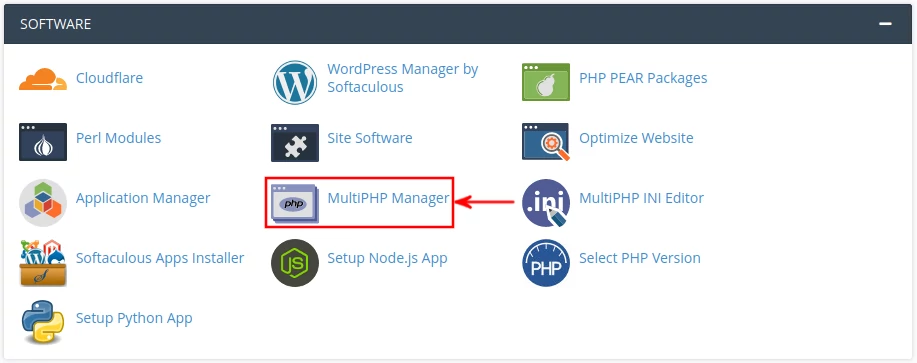
If you are using cPanel, use the MultiPHP Manager, found in the Software section.
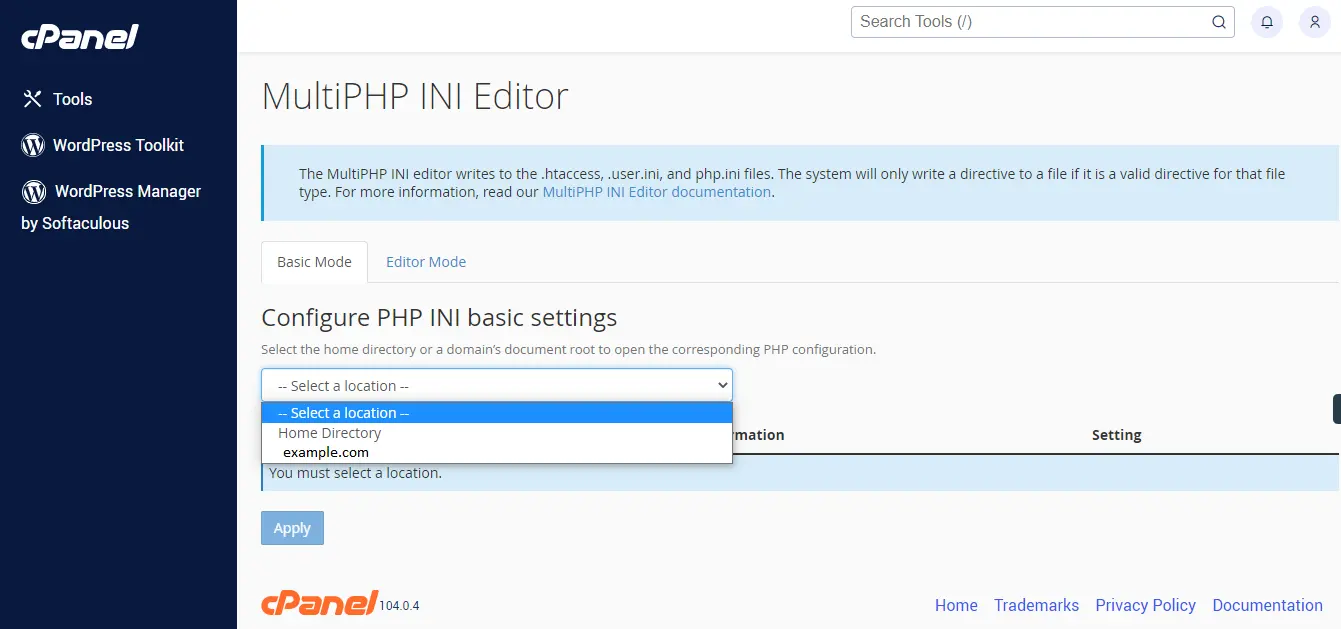
Select the domain that you want to make changes to
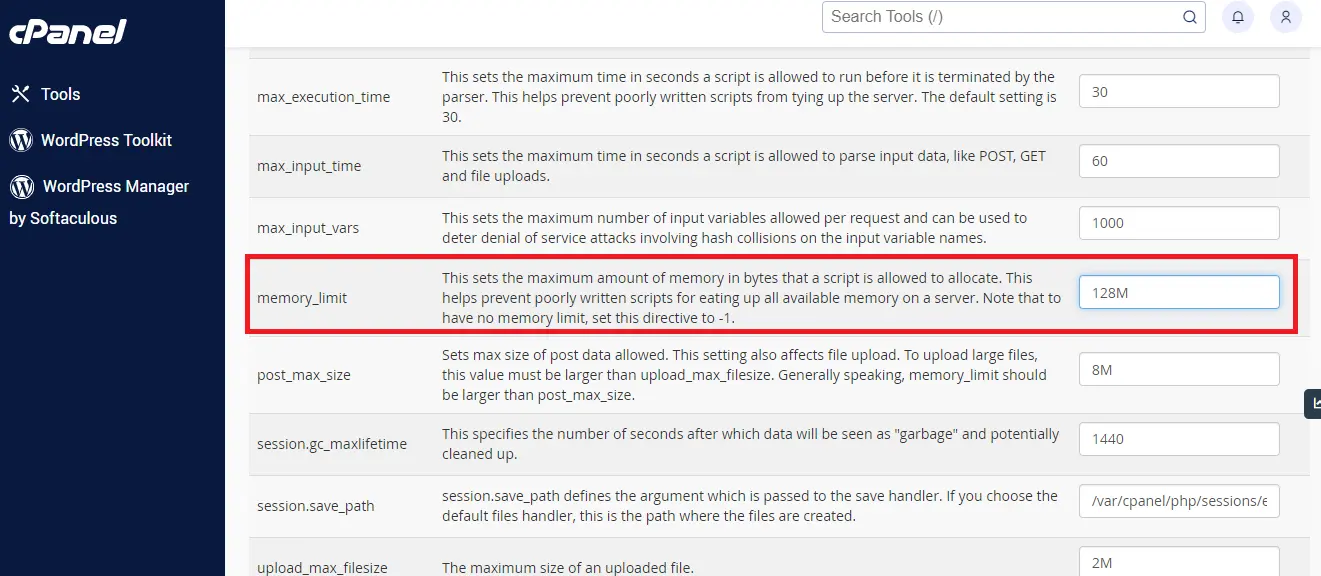
You can then set the memory limit to 256M or more
How to Avoid WordPress Memory Exhausted Error
Following best practices should reduce the memory consumption of your WordPress website.
- Update plugins or themes one by one, manually, rather than updating them at the same time.
- Deactivate unused plugins.
- Optimize images before uploading to WordPress media. Use webp or avif formats for best file-size and quality. Alternatively, use an image optimizer plugin that does this optimization and conversion automatically.
- Use a lightweight theme such as GeneratePress or Hello Elementor
- Use a caching plugin. Caching reduces the load on your server and decrease the memory usage by storing static versions of pages.
- Regularly clean up and optimize your database. Plugins like WP-Optimize can do this properly.
- Monitor server logs for any fatal errors that are caused by php memory limit. Usually, your log file will be error_log inside the root folder.