How to Fix UpdraftPlus Failed Backups
UpdraftPlus is a popular and dependable backup plugin for WordPress, and we use it to handle regular backups for the sites we manage on behalf of our customers.
However, there are times when Updraft backup stalls and fails to create a backup.
It keeps on displaying “Scheduling a resumption” and logs this error:
Failed to gain semaphore lock (fd) - another backup of this type is apparently already active - aborting (if this is wrong - i.e. if the other backup crashed without removing the lock, then another can be started after 3 minutes)
At first, I assumed it was just a temporary glitch, so I tried aborting and restarting the backup, but that didn’t solve anything.
Next, I attempted to back up only smaller parts, like the database, themes, or plugins, while excluding the large uploads folder. But even then, UpdraftPlus still failed to create a simple, small backup.
That’s when I realized it was time to dig deeper.

Possible Causes and Solutions
Update UpdraftPlus Plugin
This is the easiest solution that might work. Check if your UpdraftPlus plugin is up-to-date and update if necessary. WordPress is a frequently updated CMS platform and plugin developers keep their plugins in-sync with latest WordPress core updates accordingly.
Try to backup again after updating and if it still doesn’t work, continue with the other possible solutions below.
Check Storage Space
Whether you store your backup files locally or remotely, make sure your hosting account or remote storage has enough disk space to store your backup file. You might want to delete one of the oldest backup to open up space for the new one.
Attempt another backup and check if it works this time. If it still fails, you might try backing up only the WordPress database, only Theme and Plugins for a quick check. Avoid adding the Uploads folder to the backup, as it will have considerably larger size compared to others.
Single Backup File Size Too Large
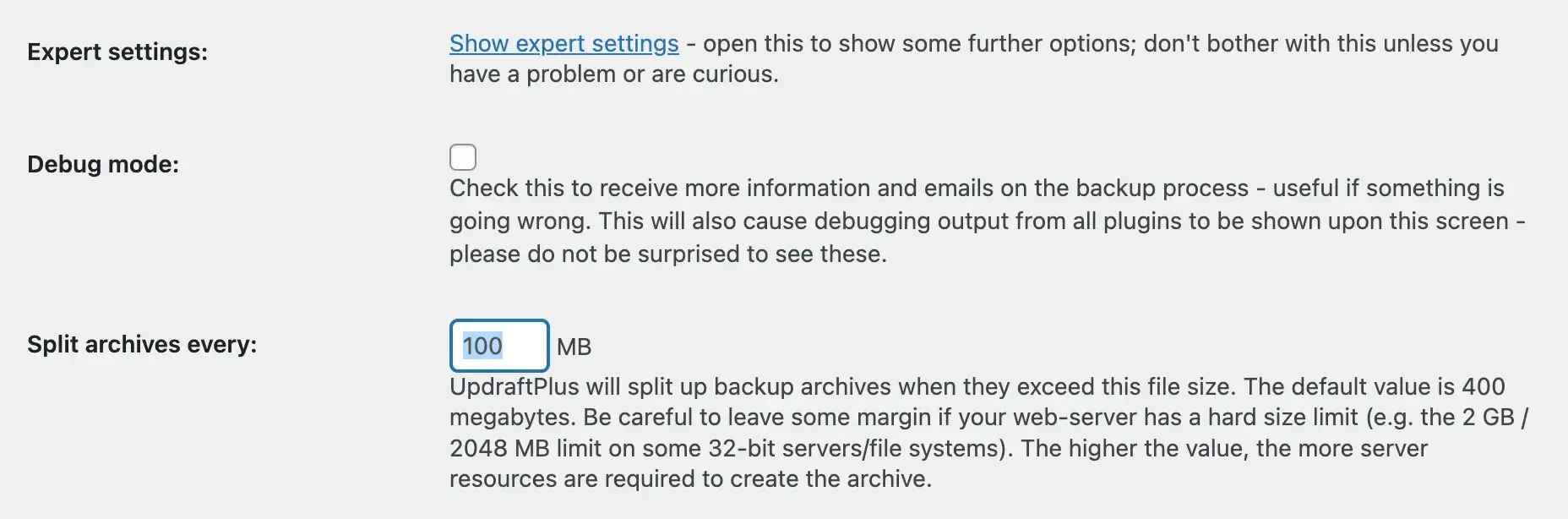
This might be another issue, especially for large website with lots of media files. UpdraftPlus has a smart solution for this called Archive Splitting.
To decrease the backup archive split size:
- Open the UpdraftPlus Settings and go to the Settings tab.
- Scroll to the Expert settings section and click Show expert settings.
- Adjust the Split archives every option to 100MB or a lower value.
- Click the Save Changes button at the bottom of the page, then run a test backup to verify.
The goal is to reduce the split size to avoid backups to fail.
.htaccess file
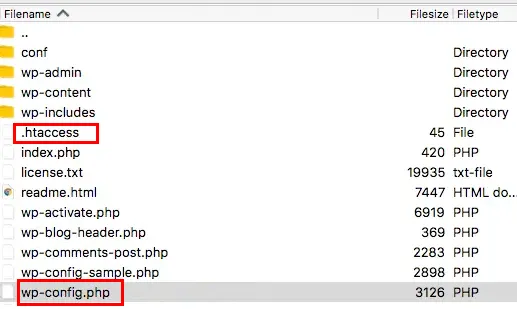
.htaccess file allows you to configure your web server environment settings, including the rewrite options. These are essential for WordPress to run properly, especially for permalinks.
There are various web servers, such as Apache, Nginx, and LiteSpeed. If your hosting provider is using LiteSpeed server, then you might try to add the following code to your .htaccess file. It’s found at the root folder of your WordPress installation (mostly public_html)
This solution is provided by the official Plugin Support at the following link:
https://wordpress.org/support/topic/backups-failing-continually-scheduling-a-resumption/
RewriteRule .* - [E=noabort:1]
In my case, this didn’t solve the issue. So, I kept on changing the other server environment variables.
wp-config.php file
WordPress requires a minimum amount of memory to complete certain tasks.
Backup tasks usually consume larger memory than others. So, increasing WordPress memory limit might solve the issue.
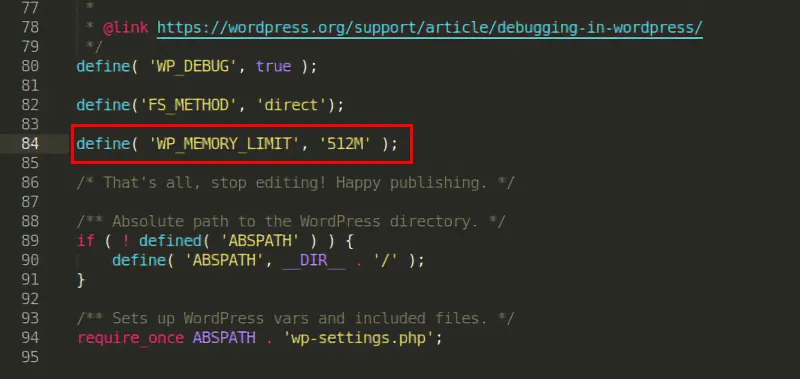
Make sure you set at least 512MB memory. To do that, use your hosting provider’s File Manager or your FTP client, navigate to the root folder and edit the wp-config.php file.
Add the following code right before the line: “That’s all, stop editing! Happy blogging.”
define('WP_MEMORY_LIMIT', '512M');
You might also want to increase the PHP timeout limit by adding the following code under the WP_MEMORY_LIMIT line.
set_time_limit(300);
Attempt to create another backup to see if these changes help. If not, proceed with the latest one, which solved the problem in my case.
PHP Version 8.2 or Newer
Changing PHP version might break your site, causing a critical error or a fatal error. PHP fatal error will result in the White Screen of Death or your site can display the actual error message if WP_DEBUG is set to TRUE in wp-config.php file.
So, if that happens, don’t panic and just revert back the PHP version to the previous one.
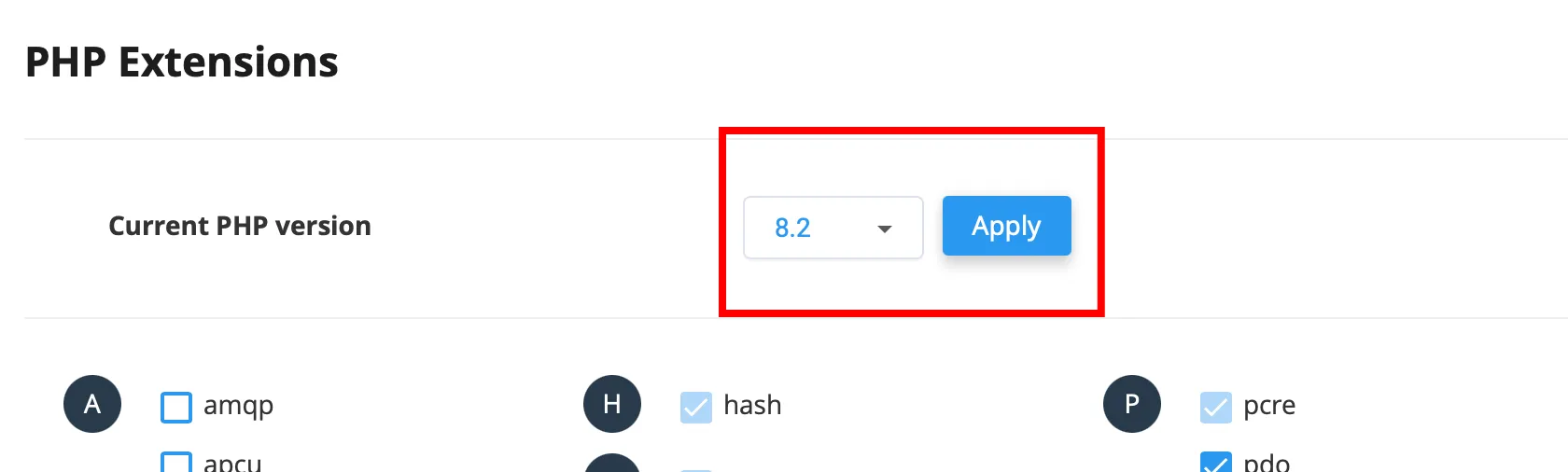
PHP version can be changed within your hosting provider’s control panel. For example, if you are using CPanel, navigate to the software section and click MultiPHP Manager or Select PHP Version.
If you can’t change it through your control panel, contact your hosting provider and ask how to change it.
Set PHP to 8.2 or newer if you are running an older version. Next, check if your website is working properly. If yes, attempt to create another backup. Make sure you abort the previous backup process if it’s still running.
In my case, customer’s site was running PHP 8.1 and UpdraftPlus was failing to create backup. When I switched to PHP 8.2, issue got resolved in my first attempt. This is probably due to plugin’s current version (Version 1.25.1) requires at least PHP 8.2 to function properly.
Conclusion
WordPress is a highly flexible yet delicate platform. Your WordPress core, installed plugins, theme, and server environment variables must be compatible with each other for proper functioning.
I hope one of the solutions suggested above fixes your issue. If yes, please consider sharing this article.
If you’ve tried all the above fixes and are still encountering issues, feel free to contact us.
We provide one-off fixes as well as subscription WordPress support plans.