Introduction to Elementor Server Error
The Elementor server error, is a frequent challenge faced by WordPress users working with the Elementor page builder and often happens when you save a page or click the update button.
This server error typically appears when there is a problem with your website’s server environment, such as a low memory limit or a conflict with another plugin.
When this error occurs, you may find yourself unable to save or update your website pages, which can disrupt your workflow and affect your site’s functionality.
Understanding the most common causes of the 500 internal server error is the first step toward a solution. Issues like insufficient memory, outdated plugins, or server misconfigurations are often at the root of the problem.
Fortunately, these errors can usually be fixed with a few targeted adjustments.
In this article, we’ll walk you through the most effective ways to resolve the Elementor server error, so you can get back to building and updating your WordPress website pages without interruption.

Understanding Internal Server Error 500
500 errors are server issues that source from your website’s server environment. The problem is not directly related to Elementor itself.
Instead, the current settings of your hosting service provider are probably not sufficient with what WordPress and Elementor require during the save or update process.
So, why do we see an Error 500 internal server error or fatal errors?
- Error 500 is a generic “Internal Server Error” that indicates something has gone wrong on the server’s end.
- The server is unable to specify the exact details of the problem.
- It is a general status code for unforeseen problems that stop the server from completing the request.
- Common causes include script errors, permissions issues, configuration problems, memory allocation needs, third-party plugin issues, and fatal errors.
Let’s continue with how to fix the 500 server error in the Elementor plugin.
Finding the Possible Cause
WordPress, by default, hides the PHP error messages for security reasons.
To view the actual error message and find out the actual cause of the error, we need to set WP_DEBUG to true in wp-config.php.
To do this, simply login to your hosting control panel and find the File Manager.
Using the File Manager of your hosting control panel or an FTP client, locate wp-config.php in the public_html folder and edit.
Scroll towards the bottom, you will see the following line: define(‘WP_DEBUG’, false); Change the false to true and save the file. Be careful not to modify anything else. define(‘WP_DEBUG’, true); After this modification, you should be able to display the full error message when saving or updating a page in Elementor. It is also important to check the server logs to identify the cause of the error.
Note this error and change the WP_DEBUG parameter back to false.
Alternatively, you should be able to view this message in the PHP error log (error_log file) generated by your web server Apache or Nginx.
error_log is located in the public_html or your root WP folder. Using File Manager, view the error_log. Scroll to the bottom of the file and search for a line that starts with a fatal or critical error. A fatal error in your website’s php file can also cause a 500 error, so be sure to check for any issues in those files.
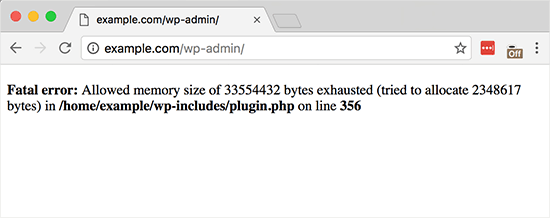
The most common cause for the fatal error is the insufficient PHP memory limit.
You will probably see something like PHP Fatal error: Allowed memory size of … bytes exhausted.
Keep reading to discover how to increase the PHP memory limit.
Increasing Php Memory Limit
WordPress requires at least 128MB or more to work fine, as seen in their requirements. However, when you use an advanced page builder such as Elementor and install a couple of other plugins, your website’s memory limit requirement increases.
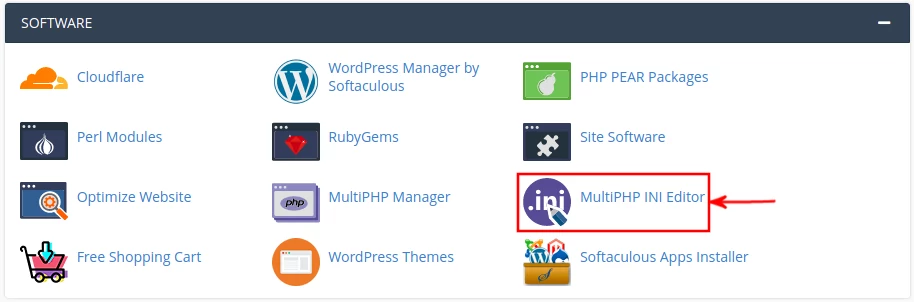
Hosting providers have different ways to increase PHP memory limit depending on the control panel they provide. The most widely used one is cPanel.
To increase the PHP memory limit in cPanel, head to Software > MultiPHP INI Editor.
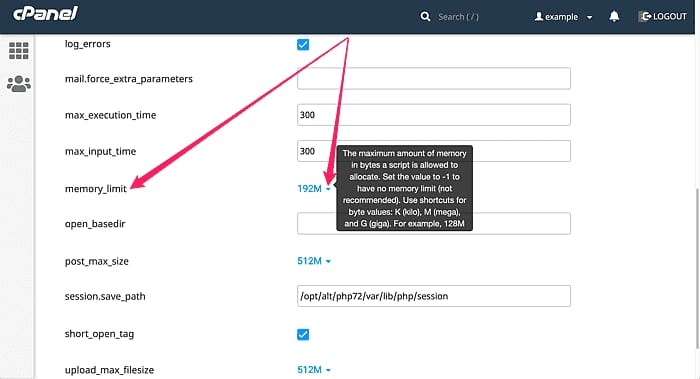
In the Options tab you locate the memory_limit and set it a value larger than 512M.
Contact your hosting service provider if their control panel does not provide a similar interface. You can increase memory limit by editing the php.ini or by adding a directive to your .htaccess file.
Alternatively, you can also set the wp memory limit in wp-config.php file. To do this, add the following lines to your wp-config.php file just below the WP_DEBUG line we edited earlier: define(‘WP_MEMORY_LIMIT’, ‘512M’);
Test Elementor with Increased Memory Limit
With 512M memory limit, Elementor should be able to save and update the page successfully. If not, try to increase the memory limit until the 500 internal server error goes away.
Save the Problem Page as a Template and Then Import That to a New Page
If this issue happens on a specific page, Elementor support suggests that you save the page as a template, then create a new page and import the template back to the new page.
If you encounter errors while editing or saving templates in Elementor, try troubleshooting by checking for server errors or plugin conflicts before proceeding.

After saving the problematic page as an Elementor template, create a new page and click Add Template icon to insert the saved template.

Additional Solutions to Consider
If you have increased the memory limit beyond 2048M and issue is not resolved, then further inspection is needed.
In that case try the following solutions:
- Check the error_log or set WP_DEBUG to true to find out which plugin is causing error. A 500 error may be the result of a fatal PHP error in the website’s PHP file.
- Make sure both of your Elementor and Elementor Pro (if applicable) plugins are updated to the latest versions.
- To pinpoint the conflicting plugin, disable all active plugins except for Elementor and Elementor Pro. Next, reactivate each plugin one by one to isolate the specific plugin that is responsible for the conflict. Check for possible reasons on the plugin’s WordPress directory support forum.
- Try temporarily changing your WordPress theme to a default WordPress theme such as Twenty Twenty-Four to check if the issue continues. If the problem disappears, there could be a conflict with your current theme.
- The most common configuration for file permissions is to have folders set to 755 and files set to 644. Contact your hosting service provider for the correct settings.
- Clear your browser cache in its history settings and try again.
Optimizing Database with WP Optimize
WordPress has a built-in feature for keeping post revisions. Each time you save a page or post, it keeps the older version in its database allowing you to switch to a previous version.
While this feature is helpful in some cases, it also clutters up the WordPress site database, increasing the memory allocated to WordPress, and causing poor performance.
I highly recommend WP Optimize plugin to clean and optimize your WordPress website database. Create a backup of your site using Updraft Plus before proceeding, and troubleshooting the 500 error.
Using its simple interface, you can easily optimize database tables, clean post revisions, auto-draft posts, trashed posts, and transients (a particular way of caching data for a certain period of time).
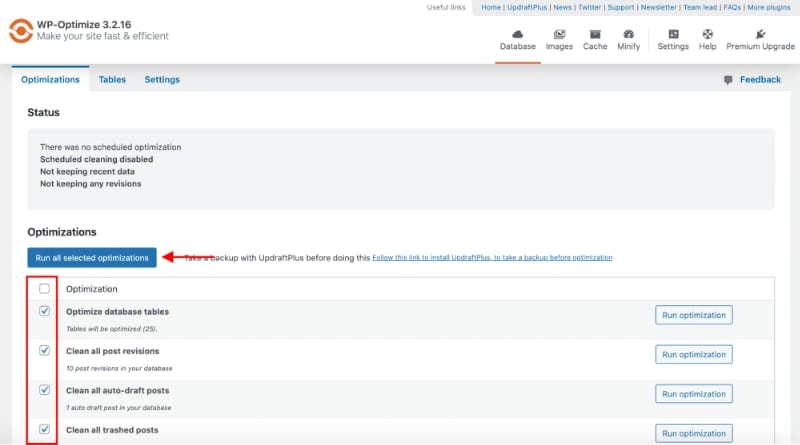
You can run optimizations one by one or all by clicking the Run all selected optimizations button. Cleaning and optimizing the WordPress database should fix the error.
If not, repeat the above steps for identifying the error, or check the official troubleshooting page of Elementor Support for further assistance.
Contacting the Hosting Provider
If you continue to experience a 500 internal server error on your Elementor website after trying the recommended fixes, it’s a good idea to reach out to your hosting service provider for further assistance.
They have access to your website’s server environment and can help diagnose and solve the root cause of the error by reviewing server logs and PHP error logs.
They can also check if your PHP memory limit is set high enough to support Elementor and other plugins, and make adjustments if necessary.
When contacting your their support team, be sure to include details such as the exact error message you’re seeing, when the error appears, and any troubleshooting steps you’ve already taken.
This information will help their support team quickly identify and resolve the issue. In many cases, your hosting provider can resolve server errors by increasing the PHP memory limit, correcting file permissions, or addressing other server-side issues that may be affecting your website.
Key Takeaways
- A website displaying HTTP 500 error can be an annoying problem, but it can be fixed by following proper troubleshooting steps. Usually, plugins are the source of this issue.
- PHP memory limit (memory allocated to your website) is one of the most common causes for HTTP 500 error. Increasing the PHP memory limit can help resolve this issue.
- Remember to check the error logs or temporarily enable WP_DEBUG to identify the source of the problem.
- If the error began after making changes to your website, such as installing a new plugin or updating WordPress core, try reversing those changes to see if it resolves the issue.
- If none of the solutions provided in this article fixes your server error 500 Elementor problem, then seek assistance from an experienced WordPress expert, your hosting provider or Elementor support.
If you find this article helpful, please consider sharing it with others who might benefit from it as well.