If your WordPress site suddenly crashes and shows a “White Screen of Death” or an error message, it’s likely a fatal error.
Depending on your hosting provider’s PHP error reporting settings, you may see either a detailed error message with specific information about the issue or a generic 500 Internal Server Error page with no further details.
If error reporting is disabled, you might encounter the White Screen of Death (WSOD), where the page remains blank, leaving you with no clues about what went wrong.
Enabling debugging in WordPress or checking your server error logs can help reveal the underlying problem. We’ll learn how to do these soon, but let’s see a couple of examples and what causes them. Understanding the context of the fatal error is crucial in identifying the underlying issue properly.
Fatal Error Examples
Fatal Error: Uncaught Error: Call to undefined function
Uncaught Error: Call to undefined function my_custom_function() in /wp-content/themes/my-theme/functions.php on line 25
Cause: The code is trying to call a function that doesn’t exist, often due to a typo, missing plugin, or incomplete theme code.
Fatal Error: Allowed memory size exhausted
Fatal error: Allowed memory size of 268435456 bytes exhausted (tried to allocate 20480 bytes) in /wp-content/plugins/my-plugin/my-plugin.php on line 102
Cause: A script is using more memory than the server allows, often due to a poorly coded plugin or theme.
Fatal Error: Cannot redeclare function
Fatal error: Cannot redeclare my_function() (previously declared in /wp-content/themes/my-theme/functions.php:15) in /wp-content/plugins/my-plugin/my-plugin.php on line 30
Cause: Two php files (e.g., a theme and a plugin) are trying to declare the same function, causing a conflict.
Fatal Error: Class not found
Fatal error: Uncaught Error: Class 'My_Custom_Class' not found in /wp-content/plugins/my-plugin/my-plugin.php on line 50
Cause: The code is trying to use a class that hasn’t been defined or included properly. Usually, it points to a missing or deactivated plugin, which is required by another plugin or theme.
Fatal Error: Timeout
Fatal error: Maximum execution time of 30 seconds exceeded in /home/username/domains/example.com/public_html/wp-includes/class-phpmailer.php on line 147
Parse Error / Syntax Error
PHP Parse error: syntax error, unexpected ‘2’ (T_LNUMBER), expecting ‘)’ in /home/username/domains/example.com/public_html/wp-config.php on line 74
HTTP 500 Error Examples
500 Internal Server Error
Example: A blank page or a browser message saying, “500 Internal Server Error.”
Cause: This is a generic server error often caused by a PHP fatal error, corrupted .htaccess file, or server misconfiguration.
500 Error Due to Plugin/Theme Conflict
Example: After activating a new plugin or theme, the site crashes with a 500 error.
Cause: The plugin or theme contains faulty code or conflicts with another plugin/theme. Possibly redeclaration of the same function.
500 Error Due to PHP Version Incompatibility
Example: After updating PHP, the site shows a 500 error.
Cause: A plugin or theme is not compatible with the updated PHP version.
500 Error Due to Corrupted .htaccess File
Example: After editing the .htaccess file, the site displays a 500 error.
Cause: Incorrect / unauthorized rules or syntax in the .htaccess file prevent the server from processing requests.
How to Enable Debugging in WordPress
In WordPress, actual error messages are hidden by default for security reasons.
To enable debugging we need to locate wp-config.php file in the root folder of your WordPress website and set define('WP_DEBUG', true);
This can be done using an FTP client (such as FileZilla) or through your File Manager at your hosting provider’s control panel.
Before attempting any changes, make sure to backup (save the file to a safe place on your computer) the original wp-config.php as it contains critical configuration settings as well as database credentials.
If you are using the FTP client, you will see the wp-config.php at the root folder. Download it and open with your favorite code editor. VS Code would be our recommended choice, but you can use any other editor that won’t corrupt the file while editing.

Locate the WP_DEBUG setting and change the false flag to true and save the file.
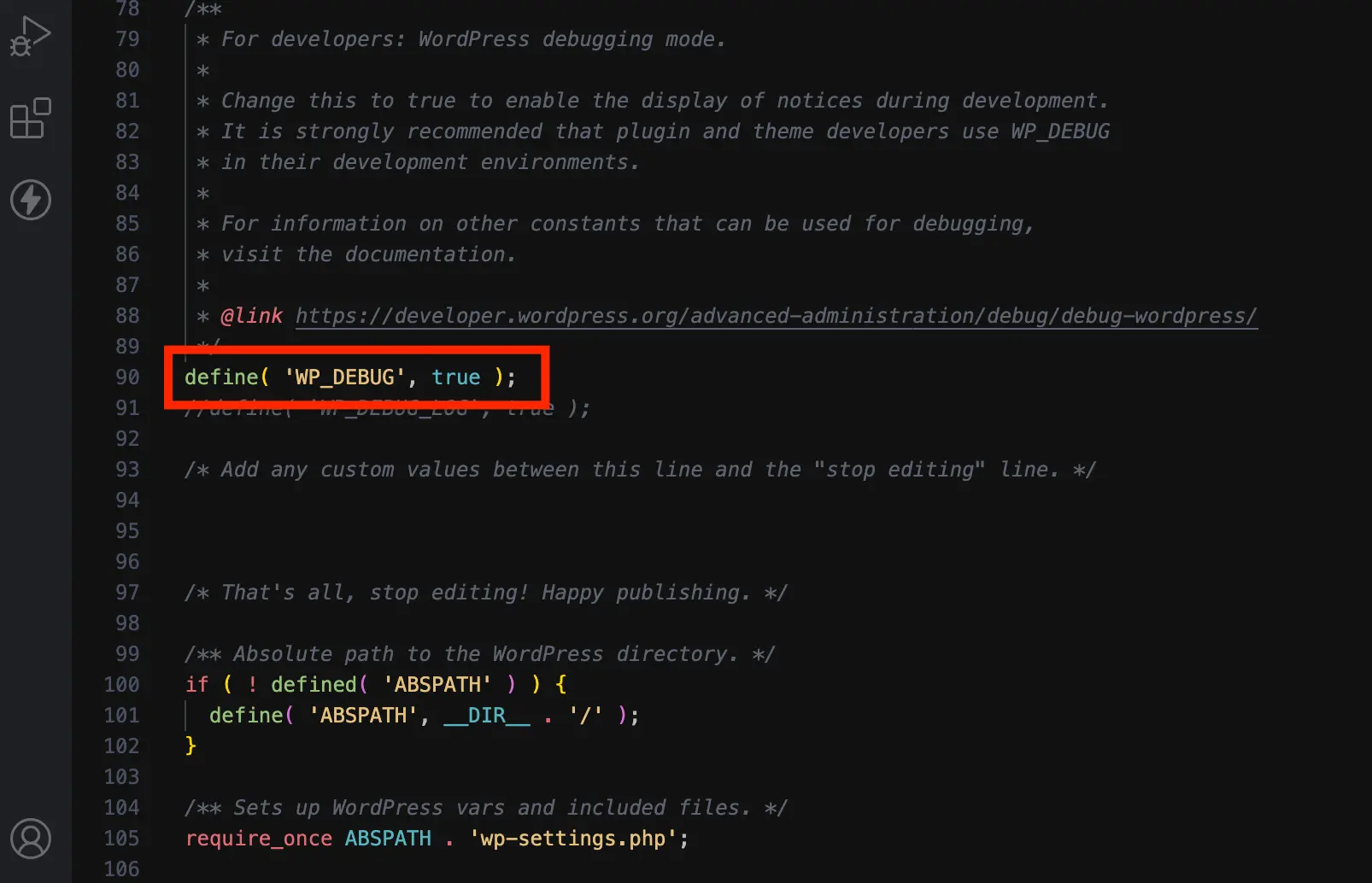
Upload the file back to root folder using your FTP client. Or just save the file, if you used File Manager of your hosting provider.
When you refresh your website, you should be able to see the actual fatal error or HTTP 500 error message.
How to Check Error Messages in Server Error Logs
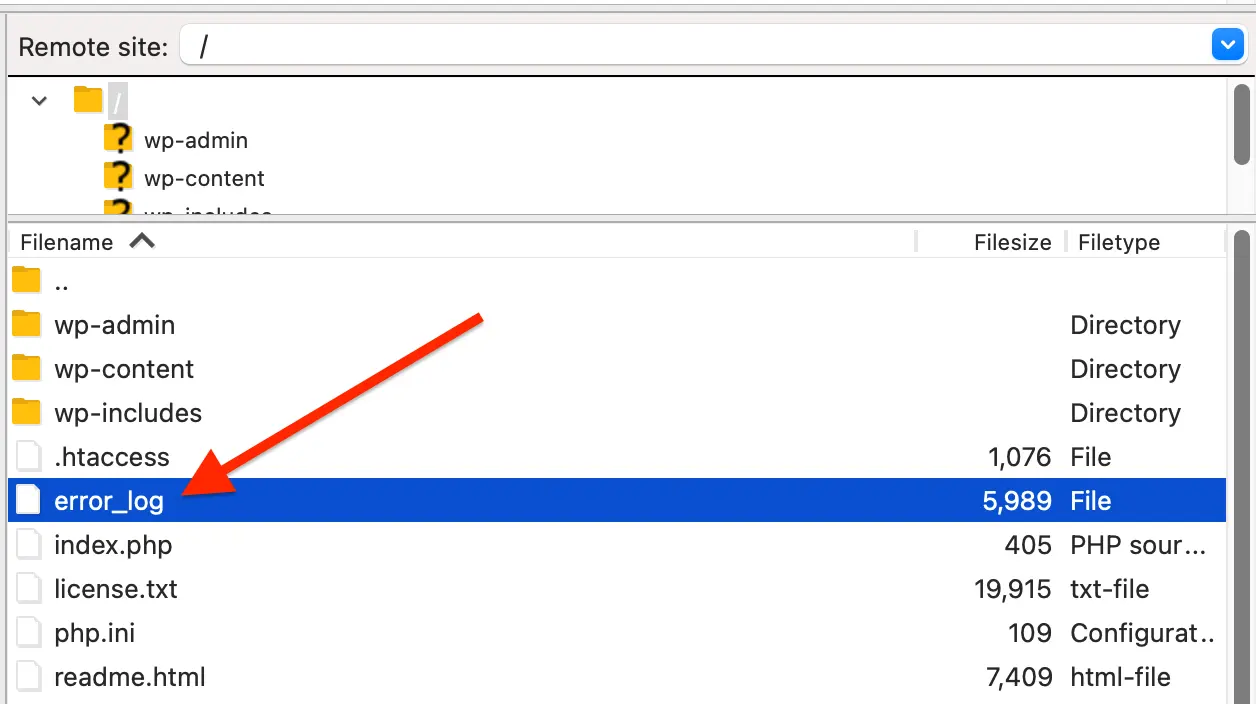
The location of the actual error log file may vary depending on your hosting provider. Usually, it’s located in the root folder as error_log file.
Download, open the file with any text editor and search for fatal error, parse error, syntax error, memory exhausted, or maximum execution time.
How to Fix WordPress Fatal Errors
Once you identify the actual source of the error, the remedy depends on the cause. Therefore, there is no one-size-fits-all fix.
In case of a missing function or missing class error, reinstall or enable the deactivated or missing plugin.
In case of memory exhausted error, increase the php memory limit to a greater value than the original value. Most WordPress websites should work with 256 MB memory.
In case of a timeout error, increase the PHP timeout value to a greated value. 300 seconds should be more than enough for most websites. You can edit this value in php.ini or use your hosting provider’s php environments editor if present. Cpanel has MultiPHP Ini Editor for this purpose.
In case of a syntax error, check for missing or an extra quotes or paranthesis or semicolon character. The error message will point what’s wrong in the code at exactly which line, so that you can correct it accordingly.
In case of a corrupted .htaccess file, rename the old one and regenerate the .htaccess file by saving Permalinks within the Settings menu of your WordPress dashboard.

Conclusion
To recap, WordPress fatal errors can occur due to various reasons.
You need to enable WordPress debugging via WP_DEBUG or check server error logs, usually error_log file, to find out the actual source of the error.
After fixing the error, don’t forget to disable WordPress debugging by setting WP_DEBUG to false in wp-config.php file.
Make sure to backup any file you are working on, especially the wp-config.file. You may never know when you would need the original file.
If the error occurs due to an incompatible PHP version, fixing the error may not be easy. Because, when you upgrade the PHP, your site might break. We recommend you to contact your hosting provider or hire a WordPress expert to properly update everything to work on the new PHP version.